
Social image sizes · browser crop
PostSize
Exact pixels for posts, covers, stories, and avatars—plus a crop that keeps faces inside the safe zone before you upload.
Browser crop · stays on your device
Crop any social size
1280 × 720
Add a photo to crop
Pick a size above, then upload—or try a sample. Nothing leaves your device.
Popular size guides
Jump to detailed guides—covers, posts, reels, and banners with safe-zone notes.
YouTube
Thumbnail
1280 × 720
Click-winning 16:9 crop with mobile readability tips.
YouTube
Channel banner
2560 × 1440
Full upload with center safe strip for phones and TVs.
Pin
1000 × 1500
2:3 vertical pins that hold attention in the feed.
Cover Photo
1640 × 624
Desktop vs mobile safe zones, live preview, browser crop.
Feed Post
1080 × 1350
4:5 feed crop with safe margins and carousel notes.
Post image
1200 × 627
Shared still for the feed with readable margins.
Tools
Size converter
Multi-ratio
Crop one photo to 4:5, square, Stories, and more.
Etsy
Listing photo
2000 × 2000
Sharp square masters for search thumbnails and gallery zooms.
Size charts by job
Covers, avatars, stories, and more—compare networks, then crop the one you need.
Social media image sizes
Posts, covers, stories, and thumbs in one chart.
Cover photo sizes
Headers and banners with safe-zone notes.
Profile picture sizes
Square uploads designed for the circle.
Story sizes
9:16 frames across Stories, Status, and Shorts.
Thumbnail sizes
YouTube and wide video click cards.
Ecommerce image sizes
Amazon, Etsy, Shopify, Marketplace, and more.
Link preview sizes
Open Graph and share cards—not covers.
Facebook vs Instagram posts
Same tall feed frame—and where the apps differ.
Image size converter
Crop by ratio and download one size—or several.
Meta Ads sizes
Feed and Stories/Reels ad artboards.
Browse every platform
One photo, many wrong crops
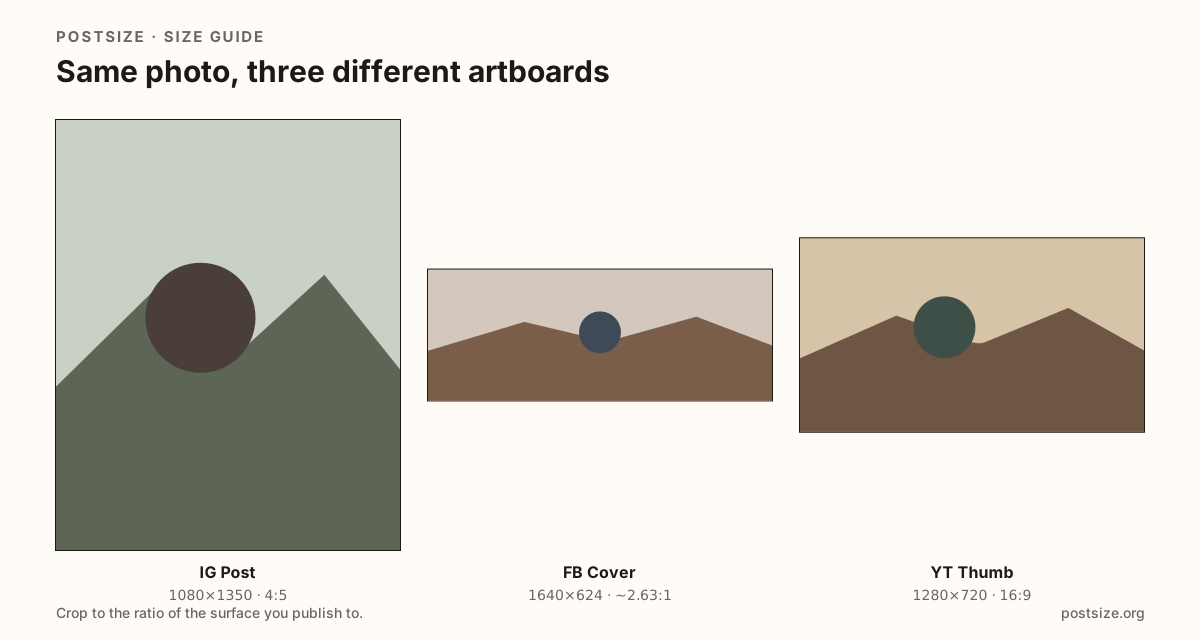
Platforms do not share one “social media size.” A Facebook cover is a wide strip phones re-crop through the center. An Instagram feed post wants taller 4:5 presence. Stories and Reels fill 9:16 under stickers and buttons. Profile photos become tiny circles.
Most soft or clipped uploads happen when people stretch the wrong export: an Open Graph card as a cover, a cover as a feed post, or a Story still squeezed into a square avatar. PostSize lists the current practical pixels for each surface and lets you crop in the browser before you publish.
Open a guide when you need safe-zone detail for that surface. Use the crop tool above when you already know the preset and just need an exact export.
Which size should you pick?
Match the job to the artboard—then crop, don’t stretch.
- Feed photo people scroll past Instagram or Facebook post at 1080×1350 (4:5). Keep carousel slides on the same ratio.
- Profile header / Page banner Facebook cover, X header, or LinkedIn cover—each ratio differs, and avatars overlap a corner.
- Full-screen vertical Stories, Reels, and TikTok at 1080×1920. Keep headlines out of top/bottom UI chrome.
- The circle next to your name Square profile uploads (often 640×640 or 800×800). Corners disappear under the mask.
- Link preview / shared URL card Often ~1200×630—not a cover substitute. See each platform guide’s “surfaces” table.
- Need the deep checklist Open the size guide for that asset. Guides include FAQs, export steps, and related surfaces.
How it works
Three steps from camera roll to a clear upload.
- Pick the preset Choose the platform size in the crop tool, or open a guide if you need safe-zone context first.
- Drag the subject Keep faces and type inside the guide—covers, stories, and circles all crop differently.
- Download & publish Export at the exact pixels, then upload on the platform. Free, no account.
Why crop here
Sizes change. Each guide shows when we last checked, so you are not guessing from an old blog chart.
Correct width and height still fail if mobile re-crops the center or UI covers your headline.
The crop tool processes locally in the browser. You download the file; we do not need an account.
Common questions
Do I need a different export for every platform?
Yes when the ratio changes. Instagram feed (4:5), X headers (3:1), LinkedIn covers (4:1), and Stories (9:16) are different artboards. Reuse the photo, not the finished file from another network.
Is PostSize free? Do you upload my photos?
Cropping runs in your browser. Nothing is uploaded to our servers for the crop tool. Download the file, then publish it yourself on each platform.
What size should I start with?
For a photo people scroll past on Instagram or Facebook, start with 1080×1350 (4:5). For a profile header, open that platform’s cover/banner guide—safe zones matter more than the pixel label alone.
Why does my cover look cut off on mobile?
Wide covers are re-framed on phones, and profile photos often overlap a corner. Use the Facebook Cover guide for a live desktop vs mobile preview, or keep subjects out of the edges on X and LinkedIn banners.
JPG or PNG?
JPG for photographs; PNG for hard-edged logos or flat type. Prefer sRGB either way so colors stay predictable after the platform compresses the file.