
Custom emoji (recommended)
Recommended128×128 1:1
Practical custom emoji upload. Keep the glyph bold—tiny detail disappears.
Use in toolSlack · Image size
Custom Slack emoji upload as small squares. Export 128×128 with a bold center mark, then download.
Browser crop · stays on your device
128 × 128
Add a photo to crop
Upload a bold glyph—or try the sample—then keep the mark inside the readable center before you download.
This is a reaction / shortcut glyph—not a 512×512 workspace icon and not a profile photo.
Export this for Slack upload.
128×128 1:1
Practical custom emoji upload. Keep the glyph bold—tiny detail disappears.
Use in tool| Asset | Pixels | Ratio | Notes | Action |
|---|---|---|---|---|
| Custom emoji (recommended) Recommended | 128×128 | 1:1 | Practical custom emoji upload. Keep the glyph bold—tiny detail disappears. | Use in tool |
Custom emoji appear in the Slack emoji picker, as message reactions, and when someone types a :shortcut:. At 128×128, thin lines, long wordmarks, and photo backgrounds vanish. Design like a sticker, not like a billboard.
Do not upload a 512×512 workspace icon and hope Slack downscales cleanly. Icons have different margins and detail density. Crop—or better, redraw—a dedicated glyph with a clear silhouette and high contrast against both light and dark themes.
Animated GIF rules vary by workspace plan and admin settings. This tool exports still frames (JPG/PNG). If your workspace allows animated emoji, prepare the GIF in a separate editor at the same square habit, then keep file weight low.
Name the shortcut carefully after upload (:shipit:, :launch:, etc.). The pixel file is only half the job—discoverability in the picker depends on a memorable name and a glyph people can recognize without reading.
Same feed frame—keep the subject inside the margin phones actually show.
Tick these off against your crop preview—nothing is saved.
Similar-looking slots often use different ratios—do not reuse one export for all of them.
128 × 128
This page. Reaction / shortcut glyph.
512 × 512
Team switcher—too detailed to shrink blindly.
512 × 512
Personal circle—not a reaction.
Often 128 × 128
Similar stamp size—re-export per app.
| Surface | Typical size | Note |
|---|---|---|
| Custom emoji | 128 × 128 | This page. Reaction / shortcut glyph. |
| Workspace icon | 512 × 512 | Team switcher—too detailed to shrink blindly. |
| Profile picture | 512 × 512 | Personal circle—not a reaction. |
| Discord emoji habit | Often 128 × 128 | Similar stamp size—re-export per app. |
At reaction size, shape and color carry the meaning. Drop fine textures, small type, and multi-panel comics. One object or face works; a collage does not.
Many workspaces only allow still emoji, or cap GIF size. This crop tool is built for still masters. If animation is allowed, keep the same 128×128 habit and a short loop so the picker stays responsive.
PNG is ideal for hard-edged glyphs and transparency. JPG suits photo-based stamps. Prefer sRGB. Export exactly 128×128—do not upload a huge canvas and hope.
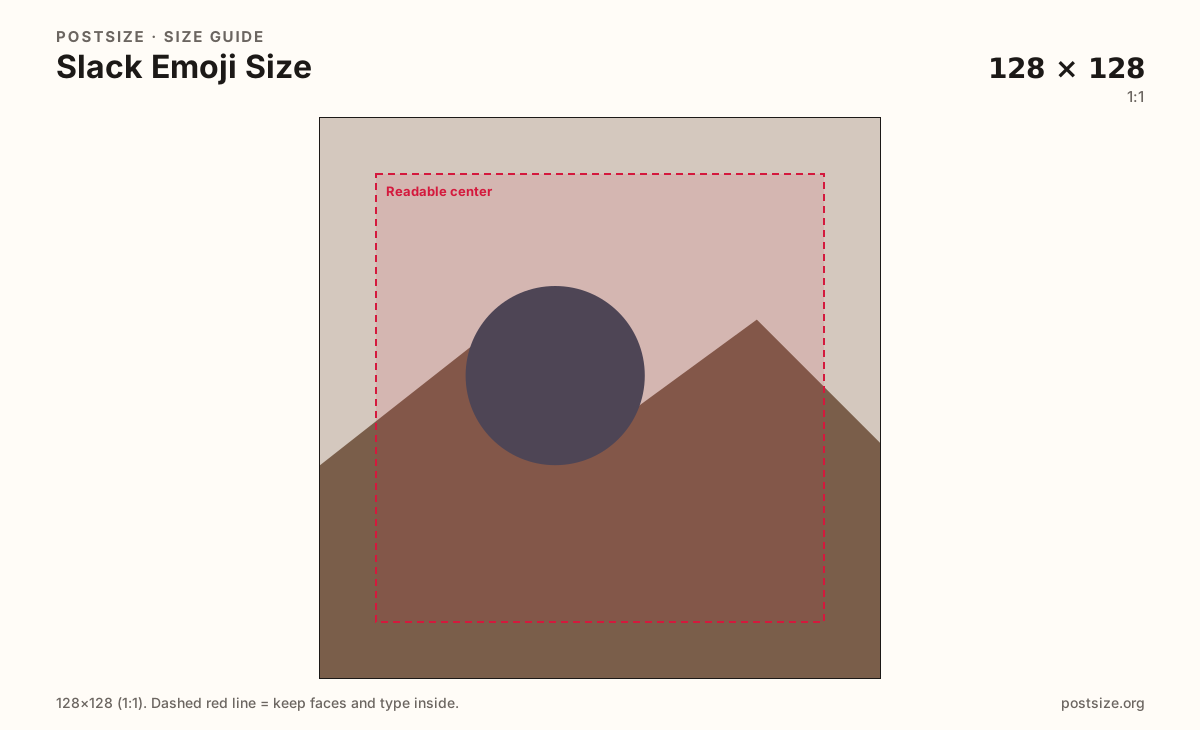
Upload a bold graphic, keep Custom emoji (128×128) selected, drag until the glyph sits in the readable center, then download. Cropping stays in the browser.
From this download to a live upload in a few minutes.
Download the 128×128 PNG (preferred for hard edges) or JPG from the tool.
In Slack, open Customize workspace → Emoji → Add emoji (permission required) and upload.
Set a clear :name: and test as a reaction in a channel.
If the glyph muddies, simplify the silhouette and re-export.
Export a 128×128 square. Keep the glyph bold—tiny detail disappears in the picker and as reactions.
Not well. Redesign or re-crop a dedicated 128×128 glyph instead of blindly shrinking the 512×512 icon.
It depends on workspace plan and admin settings. This tool exports stills; prepare GIFs separately if your workspace allows them.
Usually members with emoji permission, or admins. Exact rules vary by workspace.
Yes. This guide includes an in-browser crop—files stay on your device until you download and upload yourself.