
Profile picture (recommended)
Recommended512×512 1:1
Practical Slack avatar upload. Keep the face inside the circle.
Use in toolSlack · Image size
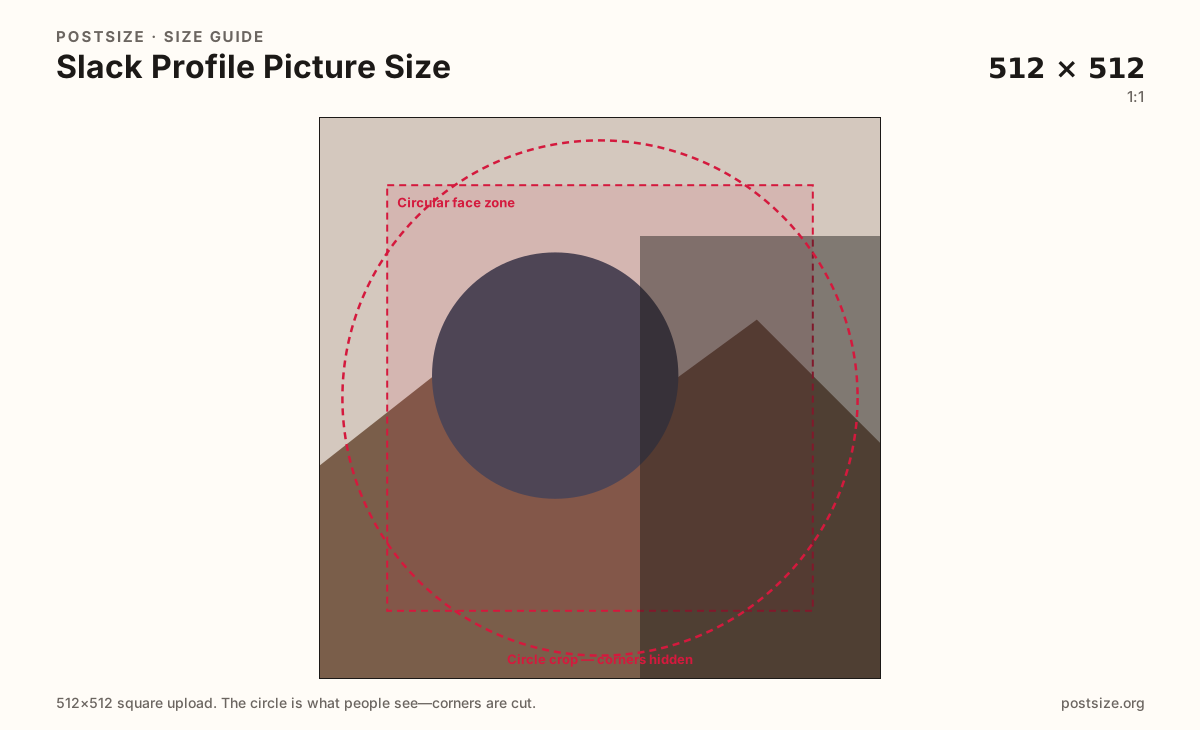
Slack profile photos upload as squares and display as circles in chat. Export 512×512 with the face centered, then download.
Browser crop · stays on your device
512 × 512
Add a photo to crop
Upload a headshot—or try the sample—then keep your face inside the circular zone before you download.
This is your personal chat avatar—not the workspace switcher icon and not a custom emoji. Keep the face inside the circle.
Export this for Slack upload.
512×512 1:1
Practical Slack avatar upload. Keep the face inside the circle.
Use in tool| Asset | Pixels | Ratio | Notes | Action |
|---|---|---|---|---|
| Profile picture (recommended) Recommended | 512×512 | 1:1 | Practical Slack avatar upload. Keep the face inside the circle. | Use in tool |
Slack shows your photo beside every message, in the sidebar, in huddles, and in the people directory. Coworkers recognize you at postage-stamp size. Busy group shots, full-body vacation photos, and text-on-image “name tags” fail as soon as the circle shrinks.
512×512 is a clear practical square for desktop and mobile Slack. Soft 64×64 upscales look muddy next to crisp workspace icons. You do not need a 4K master—you need a sharp face centered for the circular mask.
Workspace icons brand the whole team in the switcher. Custom emoji are 128×128 reaction glyphs. Reusing one file for all three jobs is how clipped ears and unreadable logos happen. Export a dedicated headshot here.
Status and presence dots sit near the avatar chrome. Leave a little breathing room around the face so Slack’s overlays do not cover eyes. Dark-mode sidebars punish low-contrast photos—prefer a clean background.
Same circle mask—corners disappear; design for the tiny comment-size icon.
Tick these off against your crop preview—nothing is saved.
Similar-looking slots often use different ratios—do not reuse one export for all of them.
512 × 512
This page. Personal chat avatar.
512 × 512
Team switcher mark—separate upload.
128 × 128
Reaction glyph—much smaller.
Often 512 × 512
Similar habit—re-crop if you reuse.
| Surface | Typical size | Note |
|---|---|---|
| Profile picture | 512 × 512 | This page. Personal chat avatar. |
| Workspace icon | 512 × 512 | Team switcher mark—separate upload. |
| Custom emoji | 128 × 128 | Reaction glyph—much smaller. |
| Discord avatar | Often 512 × 512 | Similar habit—re-crop if you reuse. |
Slack displays profile photos as circles. Anything in the square corners can vanish. Center eyes and shoulders inside the safe zone and leave margin for presence indicators.
Same-ish pixel count does not mean the same job. Your photo identifies you in chat. The workspace icon brands the team switcher. Emoji are tiny reaction art.
JPG suits photos; PNG suits flat graphics. Prefer sRGB. Keep the file a true square—Slack will still circle-crop it.
Upload a headshot, keep Profile picture (512×512) selected, drag until the face sits in the circle zone, then download. Cropping stays in the browser.
From this download to a live upload in a few minutes.
Download the 512×512 JPG or PNG from the tool.
In Slack, open your profile → Edit profile / change photo and upload the file.
Check a channel message and the sidebar on desktop and mobile.
If ears clip or the face sits low, recenter and replace.
Export a 512×512 square. Slack shows it as a circle in chat and the sidebar—keep the face centered.
No. Both are often 512×512, but the profile photo is personal and the workspace icon brands the whole team.
Yes. Design for the circular mask and keep eyes inside the safe zone on this page.
Often yes as a starting file—still re-crop to 512×512 and check Slack’s circle on light and dark themes.
Yes. This guide includes an in-browser crop—files stay on your device until you download and upload to Slack yourself.