
Meeting background (practical)
Recommended1920×1080 16:9
Practical Full HD Teams background. Community habit—preview on-camera before a client meeting.
Use in toolMicrosoft Teams · Image size
Teams meeting backgrounds look clear at a practical 1920×1080. Keep faces and brand marks centered, then download a clean still.
Browser crop · stays on your device
1920 × 1080
Add a photo to crop
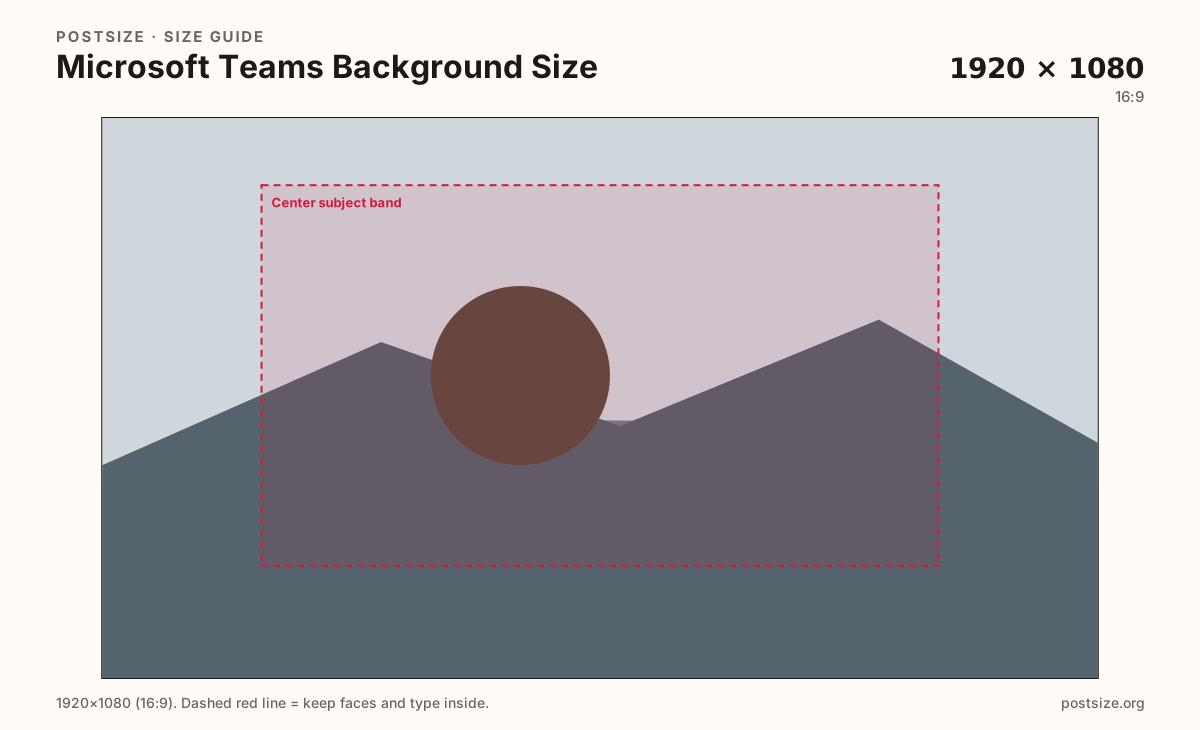
Upload a wide photo or brand graphic—or try the sample—then keep the subject inside the center band before you download.
This is the in-call backdrop—not a Teams profile photo and not a channel banner. Protect the mid-frame behind your silhouette.
Export this for Microsoft Teams upload.
1920×1080 16:9
Practical Full HD Teams background. Community habit—preview on-camera before a client meeting.
Use in tool| Asset | Pixels | Ratio | Notes | Action |
|---|---|---|---|---|
| Meeting background (practical) Recommended | 1920×1080 | 16:9 | Practical Full HD Teams background. Community habit—preview on-camera before a client meeting. | Use in tool |
Microsoft Teams composites you over a still or video plate during meetings and calls. A practical 1920×1080 (16:9) master matches HD meeting layouts without shipping an enormous print file that only slows uploads on managed devices.
Corporate environments often restrict custom backgrounds. Even when allowed, IT may compress or re-encode your file. Design with bold center marks, quiet edges, and high contrast so the plate still reads after soft masking around hair and headphones.
Zoom virtual backgrounds use a similar Full HD habit. Reuse the photo if you want—then re-crop. Teams UI chrome, blur strength, and video effects are not identical to Zoom’s Backgrounds & Effects panel.
Channel banners, profile photos, and meeting invite cards are different uploads. Do not stretch this 16:9 plate into a square avatar or a wide email header.
Same landscape card—edges and tiny type fail after compression or multi-image crop.
Tick these off against your crop preview—nothing is saved.
Similar-looking slots often use different ratios—do not reuse one export for all of them.
1920 × 1080
This page. In-call backdrop.
1920 × 1080
Similar pixels—re-check each app.
Square
Chat avatar—separate export.
~1200 × 630
Share preview—not the VB.
| Surface | Typical size | Note |
|---|---|---|
| Meeting background | 1920 × 1080 | This page. In-call backdrop. |
| Zoom VB habit | 1920 × 1080 | Similar pixels—re-check each app. |
| Profile photo | Square | Chat avatar—separate export. |
| Email / invite card | ~1200 × 630 | Share preview—not the VB. |
Many workplaces disable custom backgrounds or only allow an approved gallery. Shipping a beautiful 1920×1080 file does not help if IT blocks uploads. Confirm policy, then crop.
Both products commonly look good at 1920×1080. Soft edges, blur strength, and how much of the plate shows beside a wide webcam crop still differ. Always do an on-camera check in the app you will use live.
Export 1920×1080 as JPG or PNG in sRGB. Prefer a clear center subject and quieter rims. Avoid multi-hundred-megabyte masters on corporate networks.
Upload a wide photo or graphic, keep Meeting background (1920×1080) selected, drag until the subject sits in the center band, then download. Cropping stays in the browser.
From this download to a live upload in a few minutes.
Download the 1920×1080 JPG or PNG from the tool.
In Teams, open background effects during a meeting or from settings (wording varies) and add the image.
Confirm your organization allows custom backgrounds.
Preview with your real desk lighting; replace if the logo sits under your silhouette.
A practical export is 1920×1080 (16:9). Preview on-camera—soft edges vary by device and effects.
Yes. Many organizations restrict custom images. Confirm policy before you rely on a branded plate.
Both often use 1920×1080, but re-crop and preview in each app. Masking and chrome differ.
JPG for photos, PNG for flat graphics. Prefer sRGB and a reasonable file weight.
Yes. In-browser crop—files stay on your device until you download and upload in Teams.