
Virtual background (practical)
Recommended1920×1080 16:9
Practical Full HD virtual background. Keep the subject away from edges Zoom may soft-mask.
Use in toolZoom · Image size
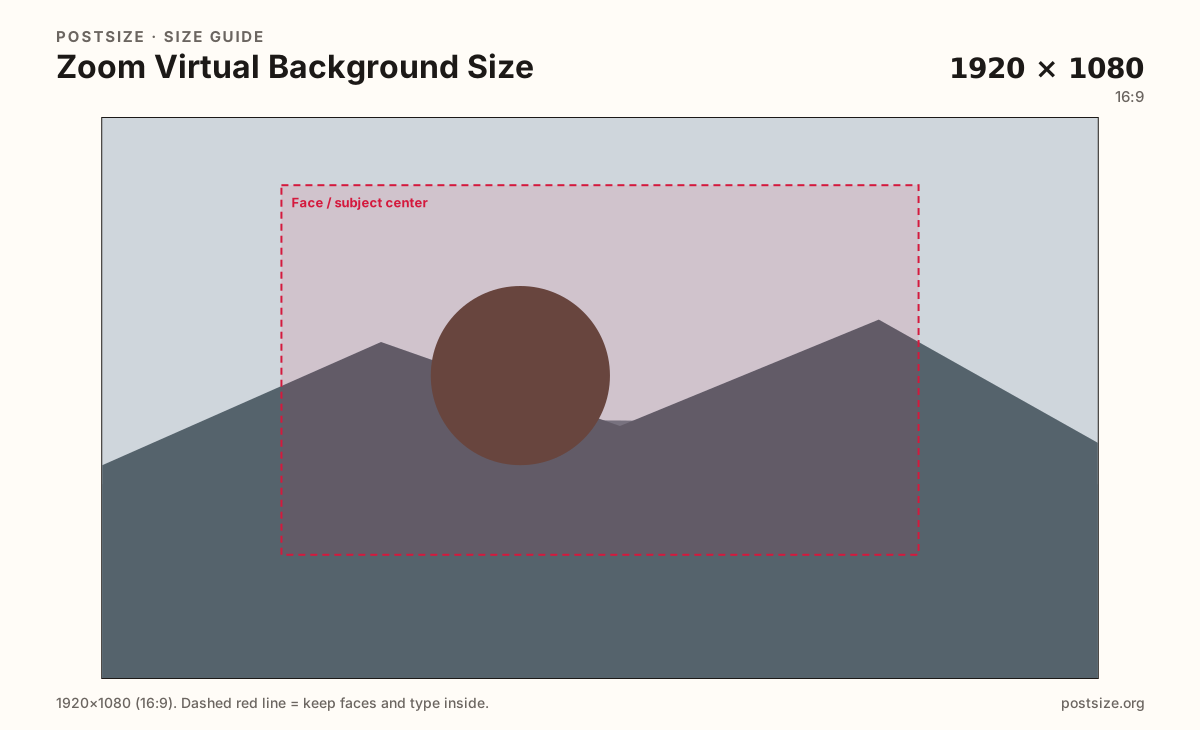
Zoom virtual backgrounds look sharp at a practical 1920×1080. Keep your face and logo in the center safe zone, then download a clear still.
Browser crop · stays on your device
1920 × 1080
Add a photo to crop
Upload a wide photo or brand graphic—or try the sample—then keep faces and logos inside the center safe zone before you download.
This is a video-call backdrop—not a meeting thumbnail and not a profile photo. Protect the center where your head and shoulders sit.
Export this for Zoom upload.
1920×1080 16:9
Practical Full HD virtual background. Keep the subject away from edges Zoom may soft-mask.
Use in tool| Asset | Pixels | Ratio | Notes | Action |
|---|---|---|---|---|
| Virtual background (practical) Recommended | 1920×1080 | 16:9 | Practical Full HD virtual background. Keep the subject away from edges Zoom may soft-mask. | Use in tool |
Zoom composites your silhouette over a still or video plate. Busy edges, thin text near the rim, and high-contrast patterns behind your shoulders are where green-screen-like artifacts and soft masks look worst. A practical 1920×1080 (16:9) master gives enough detail for HD meetings without shipping a multi-megapixel poster Zoom will compress anyway.
Your head and shoulders occupy the middle of the frame on most laptop cameras. Park brand marks, product shots, and readable slogans in the center safe band—not in the far corners that disappear behind your torso or get clipped on ultrawide vs 16:9 camera crops.
Microsoft Teams and Google Meet also lean on ~16:9 backdrops. Reuse the photo if you want, but re-crop and re-check each app’s soft edges. Do not stretch a vertical phone wallpaper into Zoom and hope.
Still JPG/PNG masters are what this tool exports. If you use a motion background, match the same 16:9 habit and keep critical art inside the same center band so a freeze-frame still works.
Same landscape card—edges and tiny type fail after compression or multi-image crop.
Tick these off against your crop preview—nothing is saved.
Similar-looking slots often use different ratios—do not reuse one export for all of them.
1920 × 1080
This page. Full HD call backdrop.
Often 1920 × 1080
Similar 16:9—re-export per app.
Square
Different upload—not a VB.
~1200 × 630
Share card—not the in-call plate.
| Surface | Typical size | Note |
|---|---|---|
| Virtual background | 1920 × 1080 | This page. Full HD call backdrop. |
| Teams background habit | Often 1920 × 1080 | Similar 16:9—re-export per app. |
| Profile / avatar | Square | Different upload—not a VB. |
| Meeting invite OG | ~1200 × 630 | Share card—not the in-call plate. |
Virtual backgrounds are judged with a person in front of them. Design as if a torso already occupies the lower-middle third. Logos that only work when nobody is on camera will fail the moment you join.
A sharp 1920×1080 plate still looks fake under uneven desk light. Even lighting helps Zoom separate you from the plate. Dark corners and strong window backlight create halo edges no crop tool can fix.
Export 1920×1080 as JPG or PNG in sRGB. Keep the subject inside the center safe zone. Huge 4K masters rarely improve call quality and may upload slower.
Upload a wide photo or graphic, keep Virtual background (1920×1080) selected, drag until the subject sits in the face-safe center, then download. Cropping stays in the browser.
From this download to a live upload in a few minutes.
Download the 1920×1080 JPG or PNG from the tool.
In Zoom, open Settings → Backgrounds & Effects (wording varies) and add the image.
Turn on the background on a test call and check shoulders and hair edges.
If the logo clips behind you, enlarge the center subject and replace the file.
A practical export is 1920×1080 (16:9). Keep faces and logos in the center—edges soft-mask during calls.
Often yes at 16:9, but re-crop and preview in Teams. Soft edges and UI chrome still differ.
Usually no. Full HD is enough for typical meetings; oversized files rarely look sharper after compression.
JPG for photographs, PNG for flat brand art. Prefer sRGB either way.
Yes. This guide includes an in-browser crop—files stay on your device until you download and upload in Zoom.