
Cover / banner
Recommended1584×396 4:1
Standard personal and Company Page background. One file; phones may reframe edges slightly and always overlay the avatar.
Use in toolLinkedIn · Image size
LinkedIn covers are a wide 1584×396 banner. Keep the lower-left clear for your profile photo, calm the edges for mobile, then download in your browser.
Browser crop · stays on your device
1584 × 396
Add a photo to crop
Upload a wide photo—or try the sample—then keep faces out of the avatar overlap before you download.
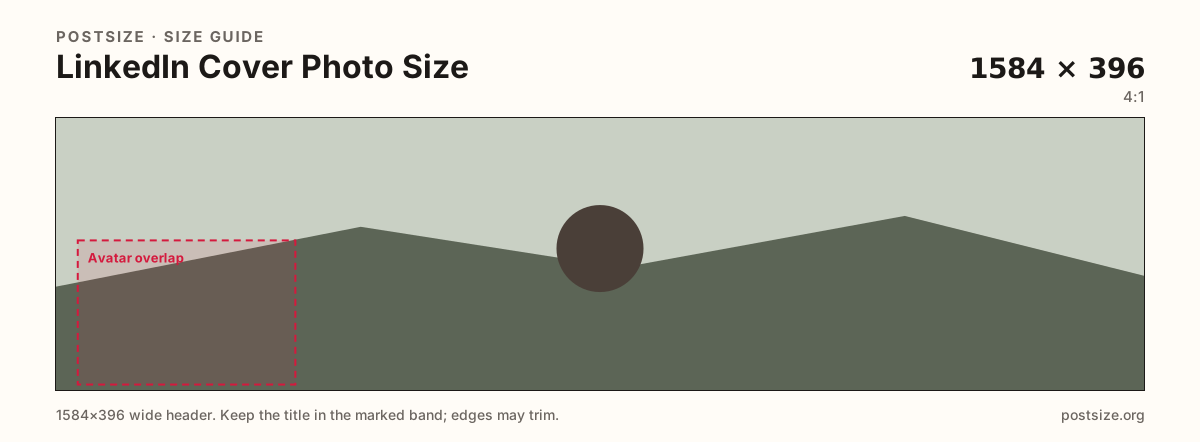
Publish at 1584×396. Leave the lower-left quieter—the circular profile photo overlaps the cover on every profile view.
Export this for LinkedIn upload.
1584×396 4:1
Standard personal and Company Page background. One file; phones may reframe edges slightly and always overlay the avatar.
Use in tool| Asset | Pixels | Ratio | Notes | Action |
|---|---|---|---|---|
| Cover / banner Recommended | 1584×396 | 4:1 | Standard personal and Company Page background. One file; phones may reframe edges slightly and always overlay the avatar. | Use in tool |
LinkedIn places your circular profile photo over the lower-left of the cover. Recruiters, clients, and colleagues all see that overlap. A skyline or slogan parked only in that corner disappears the moment the avatar loads.
The 1584×396 (4:1) frame is wider and shorter than Facebook or X headers. Stretching those exports into LinkedIn warps people and pushes type into the avatar pocket. Start from a true 4:1 artboard—or re-crop here from the original photo.
Mobile profile views can trim a little from the sides of a very wide banner. Keep the hero subject and any headline in the open mid/right band, and treat the far edges as atmosphere only.
Company Pages use a shorter cover than personal profiles—see the Company cover guide (about 1128×191). Do not stretch this personal 4:1 export into a Company Page slot, and do not assume a Facebook cover will land cleanly without a fresh crop.
Same short banner strip—quiet lower-left for the avatar, subject in the open mid/right band.
Tick these off against your crop preview—nothing is saved.
Similar-looking slots often use different ratios—do not reuse one export for all of them.
1584 × 396
This page. Personal profile background.
1128 × 191
Shorter Company banner—separate guide.
1200 × 627
Feed and link-style shared images—different ratio.
400 × 400 (try 800×800)
Circle overlapping the lower-left of this cover.
| Surface | Typical size | Note |
|---|---|---|
| Personal cover / banner | 1584 × 396 | This page. Personal profile background. |
| Company Page cover | 1128 × 191 | Shorter Company banner—separate guide. |
| Post image | 1200 × 627 | Feed and link-style shared images—different ratio. |
| Profile photo | 400 × 400 (try 800×800) | Circle overlapping the lower-left of this cover. |
The circular headshot is part of the cover composition. Design as if that circle already owns the lower-left. Busy textures, faces, and wordmarks there fight the photo and look accidental.
On smaller screens, LinkedIn may show a tighter horizontal window. Keep critical content away from the far left and right, and prefer a calm gradient or soft photo edge instead of a second logo on the rim. Desktop may show more of the 4:1 strip, but the avatar still lands in the same relative corner.
Photos as JPG; brand graphics as PNG when edges must stay clean. Prefer sRGB. Keep the file light—covers load on every profile visit, often on mobile data.
Both commonly use the same 1584×396 background. Company Pages may add buttons or extra UI near the cover—keep the lower areas calmer if your Page shows call-to-action controls.
Upload a wide image, drag until the subject clears the overlap guide, then download. Processing stays on your device—nothing is sent to our servers for cropping.
Upload a true 1584×396 (4:1) file when you can. Softer, smaller images still get stretched to fill the slot and look muddy on high-resolution laptops.
Company Pages and personal profiles commonly share this artboard. Extra Page buttons can sit near the cover—keep the lower band calmer if your Page shows call-to-action controls.
From this download to a live upload in a few minutes.
Download the 1584×396 JPG (or PNG for hard-edged brand art) from the tool.
On LinkedIn, open your profile or Page → edit background / cover photo.
Upload the file, then nudge the position if LinkedIn offers a drag control.
Save and open the profile on your phone with the avatar visible.
If anything important sits under the circle or off the short edge, re-crop and upload again.
1584×396 pixels (4:1) is the standard background/banner size for personal profiles and many Company Pages. Keep critical content out of the lower-left avatar overlap.
Yes. Cover photo, background photo, and banner usually mean the same 1584×396 strip. It is not the same as a 1200×627 post image.
Your circular profile photo overlaps that area on the profile page. Anything important there is covered for every visitor.
You may see slight edge differences on phones. Keep logos and headlines out of the rim and the avatar pocket, then preview on a real device after upload.
Both commonly use 1584×396. Confirm in LinkedIn if your Page offers extra creative formats before you produce a one-off size.
Only after re-cropping. Those networks use different ratios. Stretching them into 4:1 warps the image and often lands content under the avatar.
JPG for photographs, PNG for hard-edged logos or flat type. Export sRGB and keep the file reasonably light.
No. Feed and link-style images are typically 1200×627. See the Surfaces table—do not swap those exports into the banner slot.