
Reels frame
Recommended1080×1920 9:16
Standard vertical frame for Facebook Reels video and cover stills. Design mid-frame first.
Use in toolFacebook · Image size
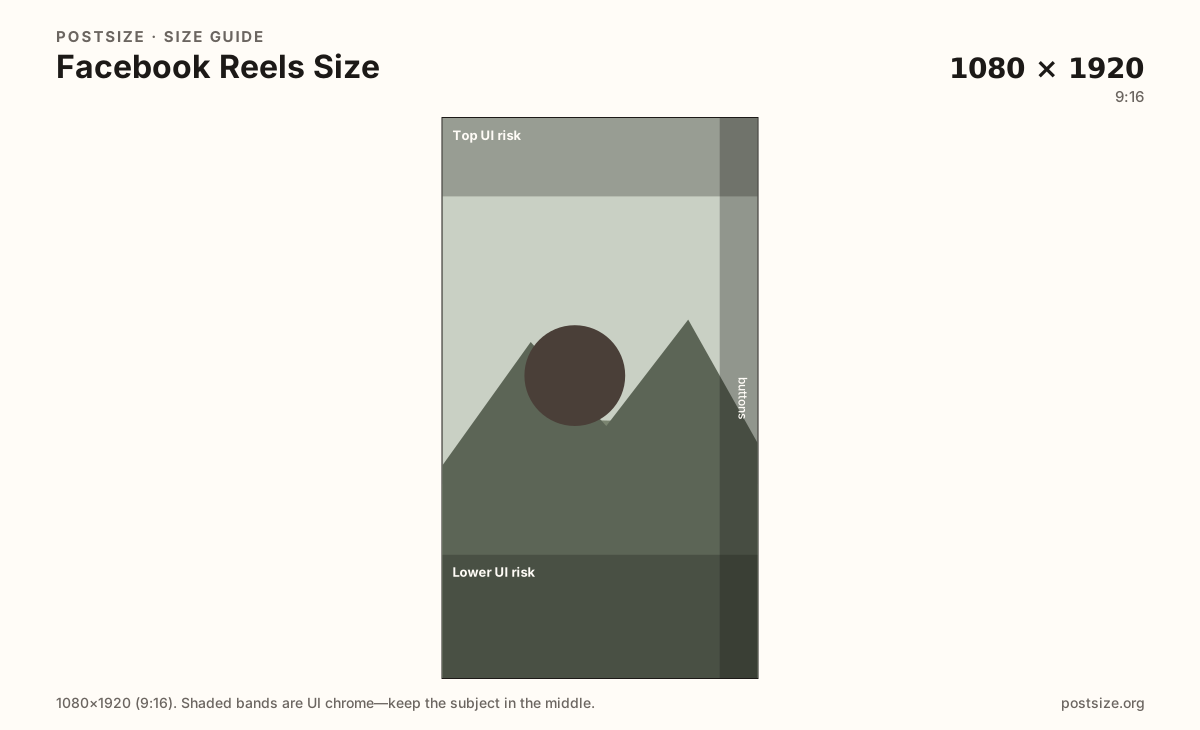
Facebook Reels fill the phone at 1080×1920. Keep faces out of the top and bottom UI bands, export a clear 9:16 cover frame, then match that framing in your editor.
Browser crop · stays on your device
1080 × 1920
Add a photo to crop
Upload a vertical frame—or try the sample—then keep the subject between the UI risk bands before you download the cover still.
Export 1080×1920, but treat the top and bottom strips as unsafe. Captions, audio chips, username rows, and action buttons cover the edges—same habit as Instagram Reels, different Facebook chrome.
Export this for Facebook upload.
1080×1920 9:16
Standard vertical frame for Facebook Reels video and cover stills. Design mid-frame first.
Use in tool| Asset | Pixels | Ratio | Notes | Action |
|---|---|---|---|---|
| Reels frame Recommended | 1080×1920 | 9:16 | Standard vertical frame for Facebook Reels video and cover stills. Design mid-frame first. | Use in tool |
A Reel fills the phone, then Facebook draws captions, audio labels, username rows, and right-side actions on top. Edges that look fine in a desktop editor can vanish on-device the moment captions turn on. Treat those bands as reserved space—not optional decoration.
Cover stills matter as much as the video. The thumbnail people tap in Reels surfaces or your Page often comes from a single frame. Export that frame at 1080×1920 and keep the hero subject in the clear middle band so it still reads with UI overlays and at tiny thumbnail size.
Facebook Stories use the same 1080×1920 pixels but different chrome—stickers, reply fields, and progress bars sit differently than Reels captions and the like/share column. A layout that clears Story stickers can still collide with Reels UI. Crop once for Reels mid-frame, then re-check if you also publish the clip as a Story.
Creators often cross-post Instagram Reels. Same 9:16 habit, but Facebook’s button stack and caption placement are not identical. Re-preview on Facebook with captions on. Feed posts (often 4:5) are a shorter surface—do not force a full-screen Reel export into the main feed without a fresh crop.
Same 9:16 frame—captions and the right-side button stack hide edge-hugging subjects.
Tick these off against your crop preview—nothing is saved.
Similar-looking slots often use different ratios—do not reuse one export for all of them.
1080 × 1920
This page. Full-screen vertical with Reels UI overlays.
1080 × 1920
Same pixels; stickers and reply UI differ—re-check safe zones.
1080 × 1350
Shorter 4:5—not a full-screen Reel export.
1080 × 1920
Same pixels; re-preview Facebook chrome before cross-posting.
| Surface | Typical size | Note |
|---|---|---|
| Reels video / cover | 1080 × 1920 | This page. Full-screen vertical with Reels UI overlays. |
| Stories | 1080 × 1920 | Same pixels; stickers and reply UI differ—re-check safe zones. |
| Feed post | 1080 × 1350 | Shorter 4:5—not a full-screen Reel export. |
| Instagram Reels (related) | 1080 × 1920 | Same pixels; re-preview Facebook chrome before cross-posting. |
Treat the top band as reserved for username, audio, and navigation, and the bottom band as reserved for captions and CTA stacks. The right edge often holds like, comment, and share controls. Exact padding varies by device and account type—design with margin, not pixel-perfect assumptions.
Both are 1080×1920, but Stories emphasize stickers, polls, and reply chrome, while Reels emphasize continuous captions and a denser action column. Clearing one surface does not automatically clear the other.
If you publish the same vertical master to both, export a mid-frame-safe cover here, then open the Story composer and nudge stickers away from the subject before posting.
People often decide from a still before the audio loads. One clear face or product in the mid band beats a dense flyer. Burned-in paragraphs belong in the caption field, not stacked over the product.
JPG suits photographic covers; PNG suits flat graphics. Prefer sRGB. Match the same 9:16 framing in your video editor so the live Reel and cover still agree.
Upload a vertical frame, choose Reels frame (1080×1920), keep the subject between the UI risk bands, then download. Processing stays in your browser.
From this download to a live upload in a few minutes.
Download the 1080×1920 JPG for a cover still—or match this frame when editing video.
Open Facebook → Reels → upload your clip (and set the cover if prompted).
Add captions and stickers only after confirming the subject is still visible.
Preview once with captions on—auto captions can cover what looked safe in the crop tool.
Scrub the first second on your phone: the opening shot should match the cover framing.
1080×1920 pixels (9:16) for video frames and cover stills. Keep critical subjects out of the top and bottom UI bands.
Same pixels (1080×1920), different UI chrome. Re-check safe zones—Story sticker clearance does not guarantee Reels caption clearance.
Often yes as a starting file—both are 9:16. Still preview on Facebook with captions on; button and caption placement can differ.
In the clear middle band between the top and bottom UI risk zones. Avoid the right-side action column when possible.
JPG for photos, PNG for hard-edged graphics. Prefer sRGB either way.
When creating or editing a Reel in Facebook, choose the cover / thumbnail frame if the composer offers it. Labels vary slightly by app version.