
Common display
320×320 1:1
Typical on-profile and comment size. Fine for a quick check; prefer 2× so it stays clear.
Use in toolFacebook · Image size
Facebook shows your profile photo as a circle on your timeline, comments, Messenger, and Page posts. Export a clear square, keep the face centered inside the circle, then download without leaving this page.
Browser crop · stays on your device
640 × 640
Add a photo to crop
Upload a headshot—or try the sample—then drag so eyes and mouth stay inside the circle guide before you download.
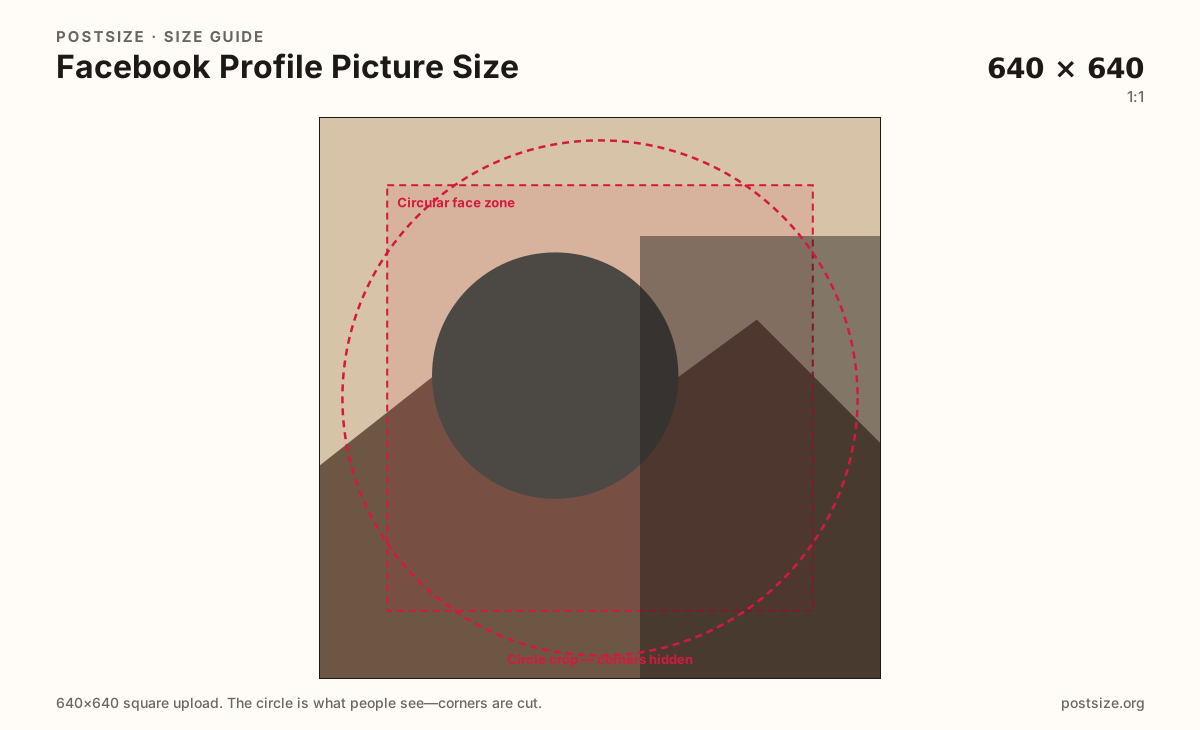
Always start from a square. The circle removes the corners—eyes, mouth, and eyebrows must live inside the guide, not near the edge.
Export this for Facebook upload.
320×320 1:1
Typical on-profile and comment size. Fine for a quick check; prefer 2× so it stays clear.
Use in tool640×640 1:1
Best practical upload for phones. Facebook still masks a circle from the center.
Use in tool| Asset | Pixels | Ratio | Notes | Action |
|---|---|---|---|---|
| Common display | 320×320 | 1:1 | Typical on-profile and comment size. Fine for a quick check; prefer 2× so it stays clear. | Use in tool |
| Recommended upload (2×) Recommended | 640×640 | 1:1 | Best practical upload for phones. Facebook still masks a circle from the center. | Use in tool |
Reference sizes and crops—not always separate upload files.
1080×1080 1:1
Useful when your camera file is already large—crop once, then downscale if needed.
Use in tool| Asset | Pixels | Ratio | Notes | Action |
|---|---|---|---|---|
| Large square source | 1080×1080 | 1:1 | Useful when your camera file is already large—crop once, then downscale if needed. | Use in tool |
You upload a square file, but Facebook almost never shows the full square. Timeline headers, comment threads, Messenger, Page posts, and search suggestions all draw a circle (or a very small circle). Anything in the four corners disappears.
That is why a logo tucked into the bottom-right, or a second person on the edge of a group selfie, often vanishes after upload. The crop tool on this page draws a circular-safe guide so you can see the real framing before you publish.
Pixel size still matters so it stays clear. A 640×640 upload usually survives Facebook’s compression better than a 200×200 file that gets scaled up. Start larger when your source photo allows it, then keep the face bold inside the circle.
Your profile photo also sits on top of the cover image. If the avatar is dark and the cover is dark—or the face is cut off—the whole profile header looks unfinished. Crop the avatar and the cover as a pair.
Tick these off against your crop preview—nothing is saved.
Similar-looking slots often use different ratios—do not reuse one export for all of them.
320 × 320 display · upload 640 × 640
This page. Circle mask on profile, comments, and most surfaces.
1640 × 624 upload
Wide banner behind the avatar—different file and ratio.
1080 × 1350
Rectangular post image—do not reuse the avatar crop.
1080 × 1920
Full-screen vertical. Avatar appears as a tiny circle in chrome, not as the story art.
| Surface | Typical size | Note |
|---|---|---|
| Profile / Page photo | 320 × 320 display · upload 640 × 640 | This page. Circle mask on profile, comments, and most surfaces. |
| Cover photo | 1640 × 624 upload | Wide banner behind the avatar—different file and ratio. |
| Feed post | 1080 × 1350 | Rectangular post image—do not reuse the avatar crop. |
| Story / Reel still | 1080 × 1920 | Full-screen vertical. Avatar appears as a tiny circle in chrome, not as the story art. |
The same file appears in many sizes: large on your profile header, medium next to posts, and tiny in comments or notifications. A crop that only works when the circle is large will fail when the icon is small.
Design for the tiny version first. If someone can still recognize your face at comment size, the larger placements will look fine. Busy backgrounds and thin outlines disappear first when the circle shrinks.
Center the face slightly above the geometric middle so the forehead and eyes read clearly. Leave a little breathing room under the chin; circles often feel tighter than squares.
Avoid placing another person, a brand mark, or a date stamp only in a corner. If it is not inside the guide, assume it is gone after upload.
Use JPG for photographs and PNG when you need a flat logo with hard edges. Prefer the sRGB color profile so colors do not shift after Facebook re-encodes the file.
Heavier files are not always better. A clean 640×640 JPG often looks clearer than a noisy 2000×2000 upload that Facebook crushes.
Upload a headshot, choose Recommended upload (640×640) or Common display (320×320), then drag until the face sits inside the circular guide. Zoom if you need a tighter headshot. Download when both the large preview and the imagined small comment icon still look clear.
From this download to a live upload in a few minutes.
Download the square JPG from the tool (prefer 640×640).
On Facebook, open your profile or Page → update profile picture.
Upload the file and confirm the circle preview still frames the face.
If Facebook offers a zoom/position step, keep eyes centered—do not pull the crop toward a corner.
Check once on your phone in a comment thread, where the avatar is very small.
Revisit your cover photo: make sure the lower-left overlap still looks intentional with the new avatar.
Plan for a square. 320×320 is a common display size; uploading 640×640 usually looks clearer on phones. Facebook shows the image as a circle on most surfaces.
Yes. Keep eyes and mouth centered so ears and chin are not cut by the circular mask. Anything in the square’s corners is usually invisible.
Larger squares (like 640×640) generally look better on high-density screens. Keep the same 1:1 ratio and a clear face inside the circle.
Facebook will crop toward a square and then a circle. Start from a square in this tool so you control what stays before you upload.
JPG for photographs and PNG for logos or flat graphics. Export sRGB and keep the file reasonably light.
The circle removes corners. Redesign the mark to fit inside a circular safe area, or place a simplified icon version in the center.
They are separate files. Coordinate colors and lighting if you can, but always crop the avatar as its own square—and leave cover space clear in the lower-left where the circle sits.