
Channel icon
Recommended640×640 1:1
Practical square for the circular Channel mark—same pixel habit as group icons. Not the wide Channel cover.
Use in toolWhatsApp · Image size
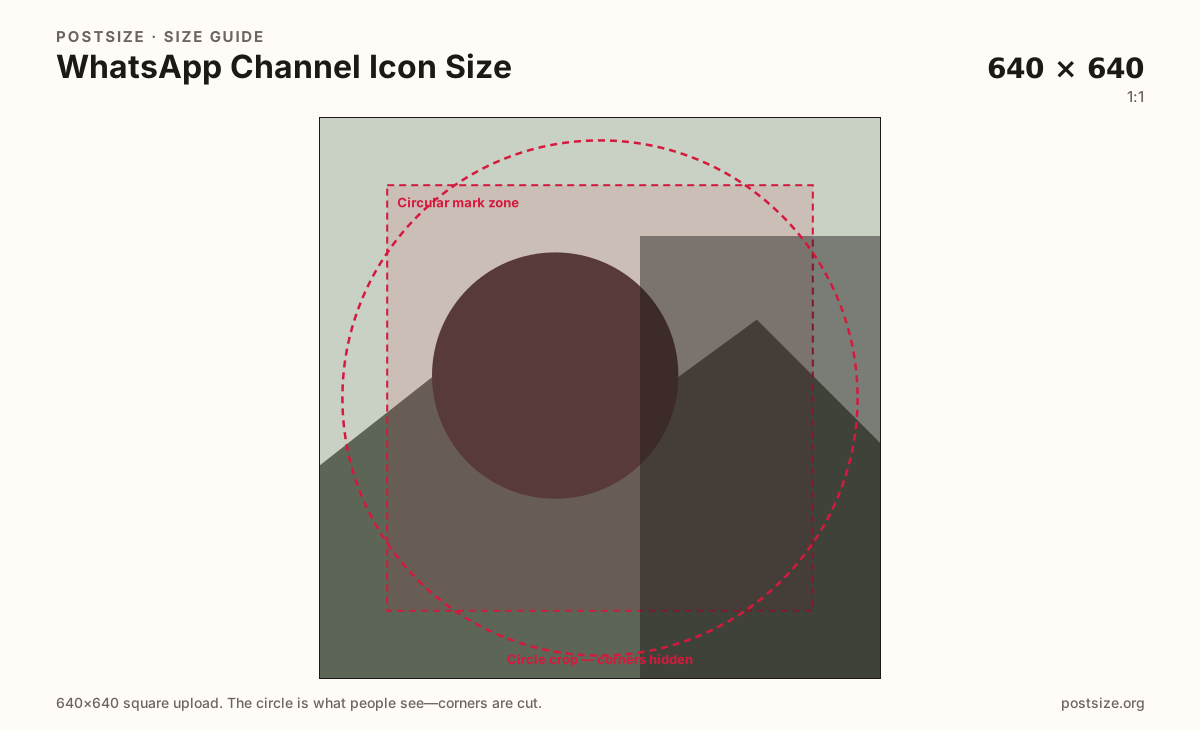
WhatsApp Channel icons are square uploads shown as circles in lists and Channel chrome. Export a clear 640×640 mark, center the logo, then download.
Browser crop · stays on your device
640 × 640
Add a photo to crop
Upload a logo or brand mark—or try the sample—then keep it inside the circle before you download.
Always square. WhatsApp masks a circle—keep letters and marks inside the guide. 640×640 matches the group-icon habit but represents the Channel brand, not a group chat.
Export this for WhatsApp upload.
640×640 1:1
Practical square for the circular Channel mark—same pixel habit as group icons. Not the wide Channel cover.
Use in tool| Asset | Pixels | Ratio | Notes | Action |
|---|---|---|---|---|
| Channel icon Recommended | 640×640 | 1:1 | Practical square for the circular Channel mark—same pixel habit as group icons. Not the wide Channel cover. | Use in tool |
Every WhatsApp Channel shows one circular icon next to the Channel name in discovery, updates, and admin tools. Followers glance at that circle while scrolling. A blurry screenshot or a stretched cover crop makes the Channel harder to recognize next to personal chats.
640×640 is the same practical square habit used for group icons: clear enough after compression, familiar if you already export WhatsApp circles at this size. The job is still different. A group icon brands a shared chat. The Channel icon brands a one-to-many broadcast identity.
Corners disappear under the circle mask. Long horizontal wordmarks lose letters. Tiny full-scene photos become speckles at list size. Prefer a bold monogram, a short acronym, or one clear product mark centered in the guide.
Channel covers (1080×360) and Status stills (9:16) are unrelated surfaces. Do not stretch a cover strip into this square. Keep a simple master so replacements stay consistent when campaigns change.
Same circle mask—corners disappear; design for the tiny comment-size icon.
Tick these off against your crop preview—nothing is saved.
Similar-looking slots often use different ratios—do not reuse one export for all of them.
640 × 640
This page. Circle in Channel lists.
640 × 640
Same pixels—group chat identity, separate upload.
1080 × 360
Wide header—separate guide.
640 × 640
Personal circle—not the Channel mark.
| Surface | Typical size | Note |
|---|---|---|
| Channel icon | 640 × 640 | This page. Circle in Channel lists. |
| Group icon | 640 × 640 | Same pixels—group chat identity, separate upload. |
| Channel cover | 1080 × 360 | Wide header—separate guide. |
| Profile picture | 640 × 640 | Personal circle—not the Channel mark. |
The icon is a tiny circle. The cover is a short wide strip above updates. Reusing one file for both usually fails one of the two crops.
Pixels match the group-icon guide, but the brand job differs. Groups are multi-party chats. Channels are broadcast publishers. Do not swap masters casually if the marks mean different things.
PNG suits flat logos; JPG suits photo marks. Prefer sRGB. Start sharp—list thumbnails punish soft upscales.
Upload a logo, choose Channel icon (640×640), keep the mark inside the circle guide, then download. Cropping stays in your browser.
From this download to a live upload in a few minutes.
Download the 640×640 JPG or PNG from the tool.
In WhatsApp Channel admin, update the Channel icon / profile photo for the Channel.
Confirm the circle in the Channel list and Channel info on a phone.
If letters clip, enlarge the mark and re-export.
A practical square is 640×640, shown as a circle—the same pixel habit as WhatsApp group icons.
No. Covers are wide 1080×360 headers. Icons are circular 640×640 marks.
Pixels match, but the brand job differs. Reuse only if the mark truly represents the Channel publisher.
No. Personal profiles and Channel icons are separate uploads—even at the same 640×640 habit.
Yes. This guide includes an in-browser crop—files stay on your device until you download and upload yourself.