
LIVE cover (practical)
Recommended1080×1920 9:16
Practical full-screen vertical for LIVE entry cards. Same pixels as many video stills—different chrome and job.
Use in toolTikTok · Image size
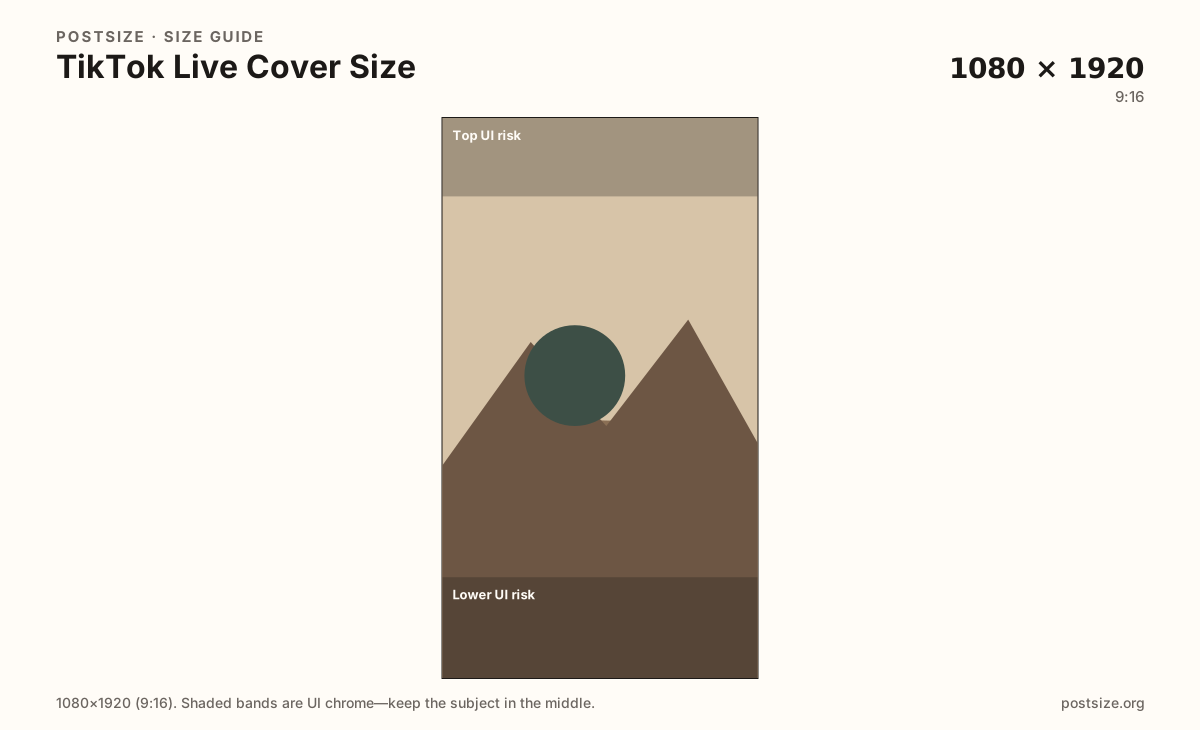
TikTok LIVE covers commonly use a full-phone 9:16 frame at 1080×1920. Keep faces out of chrome bands, then download in your browser—this is not your For You video cover.
Browser crop · stays on your device
1080 × 1920
Add a photo to crop
Upload a vertical photo—or try the sample—then keep faces between the UI risk bands before you download.
This is a LIVE-stream still—not the cover you attach to a normal TikTok video post. Keep the hook out of top and bottom UI bands.
Export this for TikTok upload.
1080×1920 9:16
Practical full-screen vertical for LIVE entry cards. Same pixels as many video stills—different chrome and job.
Use in tool| Asset | Pixels | Ratio | Notes | Action |
|---|---|---|---|---|
| LIVE cover (practical) Recommended | 1080×1920 | 9:16 | Practical full-screen vertical for LIVE entry cards. Same pixels as many video stills—different chrome and job. | Use in tool |
When you go LIVE on TikTok, the entry card is a vertical still that has to communicate “this room is open now.” Creator practice commonly ships 1080×1920 (9:16)—the same pixel box as many TikTok videos. The job is still different: LIVE chrome, badges, and viewer counts sit on top of your art in ways a finished For You post does not.
Reusing a viral video cover without re-checking LIVE UI is how titles vanish under the LIVE pill or sit under the bottom action stack. Reuse the photo if you want brand continuity; re-crop with quieter top and bottom bands for the stream card.
Profile pictures remain circular squares. They do not replace a LIVE cover. Offline Twitch-style 16:9 player art also does not belong here—TikTok’s LIVE habit is full-phone vertical.
Put one clear hook in the mid band: face, product, or short lockup. Paragraphs of on-image text die after compression and under overlays. Update the cover when the stream topic changes so returning viewers are not clicking yesterday’s art.
Same full-screen frame—top and bottom UI chrome cover anything glued to the edges.
Tick these off against your crop preview—nothing is saved.
Similar-looking slots often use different ratios—do not reuse one export for all of them.
1080 × 1920
This page. Stream entry / LIVE card still.
1080 × 1920
For You post cover—same pixels, different chrome.
200 × 200+
Circular avatar—not LIVE art.
| Surface | Typical size | Note |
|---|---|---|
| LIVE cover | 1080 × 1920 | This page. Stream entry / LIVE card still. |
| Video / cover still | 1080 × 1920 | For You post cover—same pixels, different chrome. |
| Profile picture | 200 × 200+ | Circular avatar—not LIVE art. |
Both are often 1080×1920. A video cover sells a finished clip in the For You feed. A LIVE cover sells an open room with different overlays and urgency. Export or at least re-check separately.
If your best frame is from a previous video, crop it again with LIVE chrome in mind instead of uploading the old cover file unchanged.
LIVE UIs draw badges, viewer counts, and controls over your pixels. Treat the mid third as the only guaranteed message area.
JPG for photos, PNG for flat graphics. Prefer sRGB. A sharp 1080×1920 usually beats a soft upscale.
Upload a vertical photo, choose LIVE cover (1080×1920), keep the subject between the risk bands, then download. Cropping stays in the browser.
From this download to a live upload in a few minutes.
Download the 1080×1920 JPG or PNG from the tool.
In TikTok LIVE setup, set the cover / entry still before you go live.
Preview on a phone with LIVE UI in mind.
If type sits under chrome, re-crop toward the mid band.
1080×1920 (9:16) is a practical default for LIVE entry stills. Keep the subject out of top and bottom UI bands.
Same pixels often, different job. Video covers sell a clip; LIVE covers invite people into a stream with different chrome—re-check before you publish.
Often as a starting file—both are 9:16—but re-check TikTok LIVE overlays before you go live.
Yes. The in-browser crop stays on your device until you download and set it in TikTok LIVE yourself.