
Hero banner (practical start)
Recommended2048×1024 2:1
Useful 2:1 master for many homepage / slideshow heroes. Always re-check inside your theme—ratios vary by section settings.
Use in toolShopify · Image size
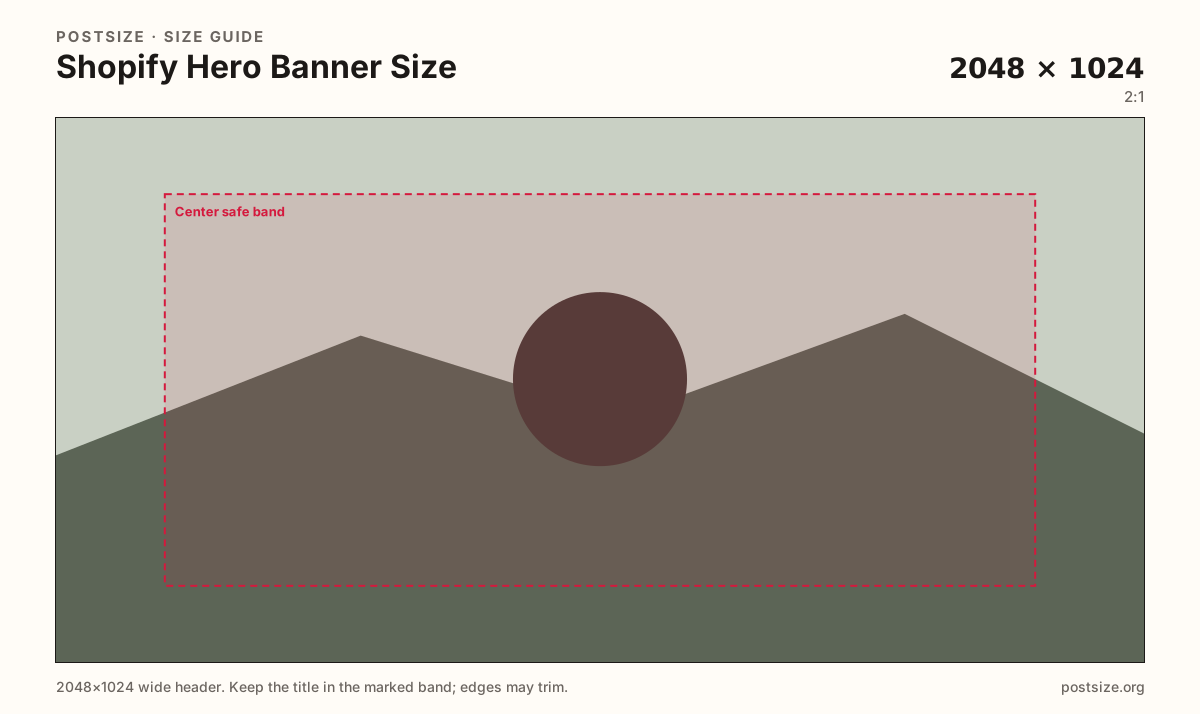
Shopify heroes are theme-dependent. Start with a 2048×1024 (2:1) master, keep type in the center band, then preview in your theme before you publish.
Browser crop · stays on your device
2048 × 1024
Add a photo to crop
Upload a wide photo or graphic—or try the sample—then keep headlines inside the center band before you download.
Themes and section settings control the live frame. Treat 2048×1024 as a sharp starting master, not a guarantee every theme will show the full 2:1.
Export this for Shopify upload.
2048×1024 2:1
Useful 2:1 master for many homepage / slideshow heroes. Always re-check inside your theme—ratios vary by section settings.
Use in tool| Asset | Pixels | Ratio | Notes | Action |
|---|---|---|---|---|
| Hero banner (practical start) Recommended | 2048×1024 | 2:1 | Useful 2:1 master for many homepage / slideshow heroes. Always re-check inside your theme—ratios vary by section settings. | Use in tool |
Shopify does not lock every storefront to one hero pixel size. Dawn, vintage themes, and custom sections expose different heights, focal-point tools, and mobile crops. A practical starting master is 2048×1024 (2:1).
Keep headlines and CTAs in the center safe band. Themes often crop more from the top/bottom on mobile or reframe with a focal point—edge-glued slogans disappear first.
This is not a product image. Product media wants a 2048×2048 SKU master. Stretching a hero into the product gallery looks like a homepage screenshot, not catalog photography.
Collection images (1024×1024) label category tiles. Reuse photography if you want—export each ratio separately and always preview the live theme section after upload.
Same short banner strip—quiet lower-left for the avatar, subject in the open mid/right band.
Tick these off against your crop preview—nothing is saved.
Similar-looking slots often use different ratios—do not reuse one export for all of them.
2048 × 1024
This page. Practical 2:1 start—theme may crop.
2048 × 2048
SKU master—different job.
1024 × 1024
Category tile—separate export.
| Surface | Typical size | Note |
|---|---|---|
| Hero banner | 2048 × 1024 | This page. Practical 2:1 start—theme may crop. |
| Product image | 2048 × 2048 | SKU master—different job. |
| Collection image | 1024 × 1024 | Category tile—separate export. |
Section height, mobile behavior, and overlay chrome differ by theme and by the settings you pick (full bleed, contain, focal point). 2048×1024 is a sharp, flexible start—not a substitute for the theme preview.
Heroes sell the mood of a page. Product images sell one SKU. Collection images label a category. Mixing them without a fresh crop is how soft and letterboxed storefronts happen.
JPG for photographic heroes. PNG for hard-edged graphics. Prefer sRGB. A sharp 2048×1024 usually beats an enormous noisy master the CDN will recompress.
Upload a wide photo, choose Hero banner (2048×1024), drag until the headline clears the side and vertical risk, then download. Processing stays in the browser.
From this download to a live upload in a few minutes.
Download the 2048×1024 JPG (photos) or PNG (graphics) from the tool.
In Shopify admin, open Online Store → Themes → Customize and upload the image to the hero / slideshow / image banner section.
Set focal point if the theme offers it, then check phone and desktop.
If the theme crops too hard, re-crop with more center margin and replace the file.
A practical starting size is 2048×1024 (2:1). The live crop depends on your theme and section settings—always preview in Customize.
Shopify themes set different heights, mobile crops, and focal-point tools. Pixels alone do not guarantee the on-page frame.
No. Product images are usually square SKU masters (2048×2048). Heroes are wide section banners—export separately.
JPG for photographs, PNG for hard-edged graphics. Export sRGB.
Yes. This guide includes an in-browser crop—files stay on your device until you download and upload to Shopify yourself.