
Collection image (recommended)
Recommended1024×1024 1:1
Practical collection / category tile. Themes may crop slightly—keep the subject centered.
Use in toolShopify · Image size
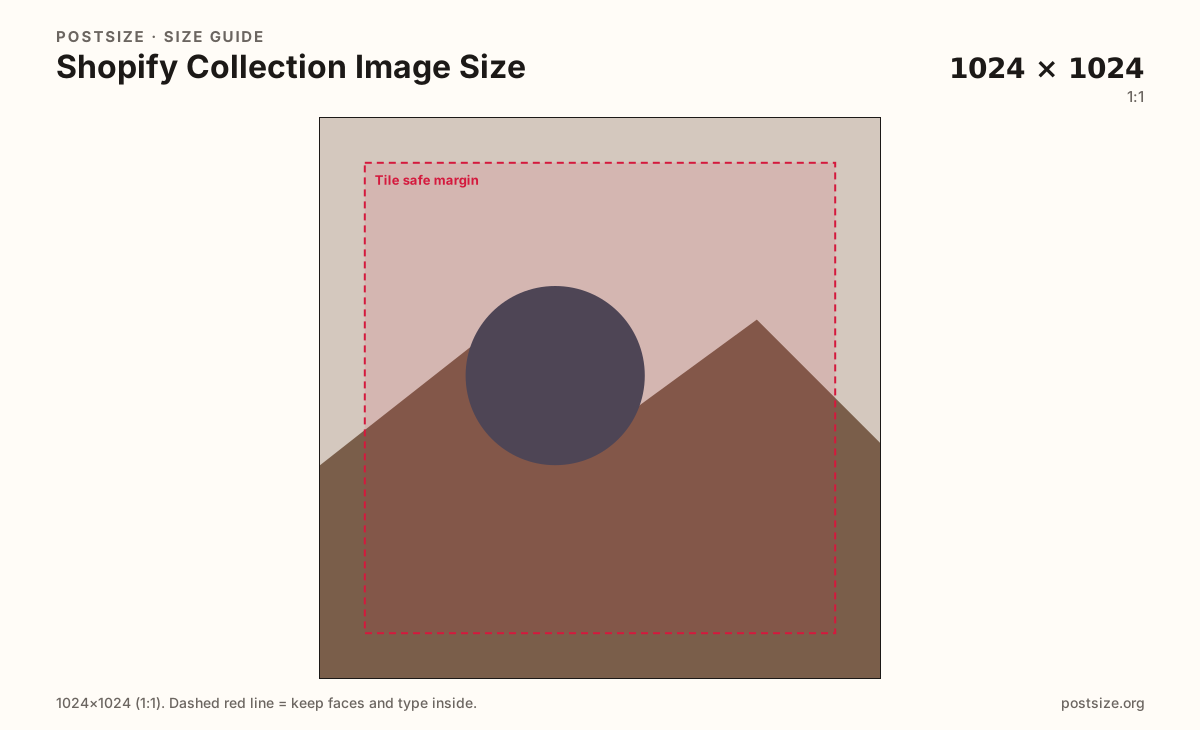
Shopify collection images commonly use a 1024×1024 square. Export a clear category tile, keep the subject centered, then download in your browser.
Browser crop · stays on your device
1024 × 1024
Add a photo to crop
Upload a lifestyle or product set photo—or try the sample—then keep the subject inside the margin before you download.
This brands a collection or category—not a single product PDP master and not the homepage hero. Design for a square grid tile.
Export this for Shopify upload.
1024×1024 1:1
Practical collection / category tile. Themes may crop slightly—keep the subject centered.
Use in tool| Asset | Pixels | Ratio | Notes | Action |
|---|---|---|---|---|
| Collection image (recommended) Recommended | 1024×1024 | 1:1 | Practical collection / category tile. Themes may crop slightly—keep the subject centered. | Use in tool |
Shopify collections group products. The collection image is the square stamp shoppers see in collection lists, navigation megamenus, and some homepage blocks. A practical size is 1024×1024.
Themes may round corners or crop slightly. Keep the hero subject inside the safe margin so labels and faces do not sit on the rim. Bold, simple scenes beat busy collages at small tile size.
This is not the 2048×2048 product master. Reusing one SKU photo as every collection cover can work visually—but export intentionally so the tile reads as a category, not a random PDP crop.
Homepage heroes (~2048×1024, theme-dependent) are wider billboards. Do not stretch a collection square into a hero and accept soft letterboxing.
Same feed frame—keep the subject inside the margin phones actually show.
Tick these off against your crop preview—nothing is saved.
Similar-looking slots often use different ratios—do not reuse one export for all of them.
1024 × 1024
This page. Category / collection tile.
2048 × 2048
SKU master on the PDP.
2048 × 1024
Wide section hero—theme-dependent.
| Surface | Typical size | Note |
|---|---|---|
| Collection image | 1024 × 1024 | This page. Category / collection tile. |
| Product image | 2048 × 2048 | SKU master on the PDP. |
| Hero banner | 2048 × 1024 | Wide section hero—theme-dependent. |
Collection images shrink in menus and index grids. One clear subject and limited type beat a poster full of slogans. If you need a caption, let the collection title in the theme carry it.
Collection tiles brand a group. Product images sell one item at higher resolution. Heroes brand a full-width section. Export each job on its own artboard.
JPG for photographic tiles. PNG for flat graphics. Prefer sRGB. 1024×1024 is enough for most collection cards without the weight of a 2048 product master.
Upload a photo, choose Collection image (1024×1024), drag until the subject clears the margin, then download. Cropping stays in your browser.
From this download to a live upload in a few minutes.
Download the 1024×1024 JPG (photos) or PNG (graphics) from the tool.
In Shopify admin, open Products → Collections → select the collection and upload the image.
Preview collection lists and any homepage collection blocks on phone and desktop.
If the theme crops the subject, re-crop with more center margin and replace the file.
1024×1024 is a practical square size for collection / category tiles. Keep the subject centered for theme crops.
No. Product images are higher-res SKU masters (often 2048×2048). Collection images brand a category tile—export separately when the stories differ.
Yes. Leave a quiet margin so rounding and slight crops do not clip the subject.
JPG for photographs, PNG for hard-edged graphics. Export sRGB.
Yes. This guide includes an in-browser crop—files stay on your device until you download and upload to Shopify yourself.