
Practical square
Recommended640×640 1:1
Practical square for LINE chat and friends-list circles. Keep the face inside the guide—preview in LINE.
Use in toolLINE · Image size
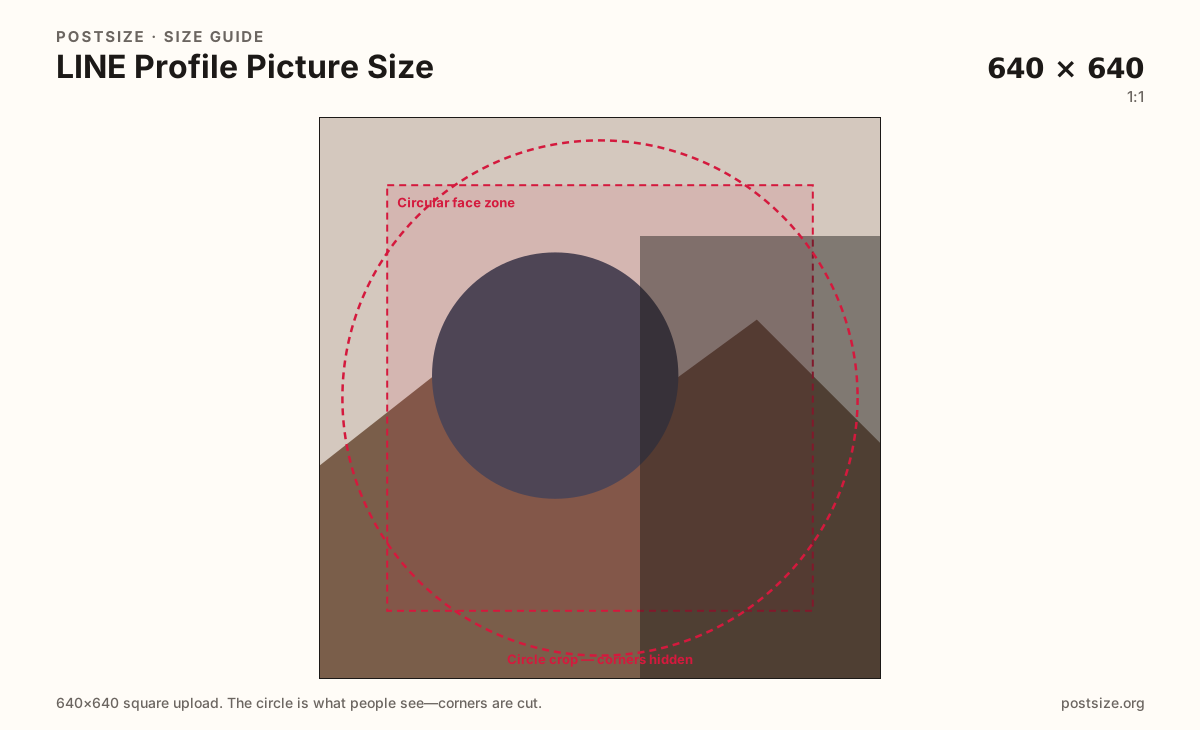
LINE shows your photo as a circle in chats and friends lists. Export a clear 640×640 square, keep the face inside the guide, then download.
Browser crop · stays on your device
640 × 640
Add a photo to crop
Upload a headshot or logo—or try the sample—then keep the subject inside the circle guide before you download.
Chat lists shrink this file to a tiny disc. VOOM posts and Official Account covers are separate jobs.
Export this for LINE upload.
640×640 1:1
Practical square for LINE chat and friends-list circles. Keep the face inside the guide—preview in LINE.
Use in tool| Asset | Pixels | Ratio | Notes | Action |
|---|---|---|---|---|
| Practical square Recommended | 640×640 | 1:1 | Practical square for LINE chat and friends-list circles. Keep the face inside the guide—preview in LINE. | Use in tool |
In Japan, Taiwan, Thailand, and other LINE markets, your profile photo is the stamp people see in every chat thread. A practical 640×640 square with the face centered beats a soft group selfie cropped from a VOOM square.
LINE circles clip the corners hard. Wide wordmarks and edge-only logos fail first. Fill most of the guide with one face or a simple brand mark.
WeChat profile photos use a similar square-to-circle habit (practical 640×640 here too). Cross-region brands can share a master, but still preview in LINE—stickers, themes, and list density differ.
Do not stretch a VOOM 1080×1080 post or an Official Account cover into this slot. Those surfaces need their own exports.
Same circle mask—corners disappear; design for the tiny comment-size icon.
Tick these off against your crop preview—nothing is saved.
Similar-looking slots often use different ratios—do not reuse one export for all of them.
640 × 640
This page. Chat and friends-list circle.
1080 × 1080
Timeline square—separate guide.
1100 × 600
Business banner—not the avatar.
640 × 640
Similar circle habit—preview each app.
| Surface | Typical size | Note |
|---|---|---|
| Profile picture | 640 × 640 | This page. Chat and friends-list circle. |
| VOOM post | 1080 × 1080 | Timeline square—separate guide. |
| Official Account cover | 1100 × 600 | Business banner—not the avatar. |
| WeChat profile picture | 640 × 640 | Similar circle habit—preview each app. |
Most recognition happens as a tiny disc beside a message preview. If someone cannot tell who you are at that size, the full profile view does not save the first impression.
Both messengers use circular avatars from square uploads. Practical 640×640 works as a shared starting size for regional campaigns—but LINE and WeChat audiences, stickers, and themes are not the same product.
JPG for photos; PNG for flat logos. Prefer sRGB. Keep weight light for mobile profile updates.
Upload a headshot, keep Practical square selected, drag until the face sits in the guide, then download.
From this download to a live upload in a few minutes.
Download the 640×640 JPG or PNG from the tool.
In LINE, open profile settings and upload the photo.
Check a chat list and a 1:1 chat header on your phone.
If the face clips, enlarge and re-export.
A practical export is 640×640 (1:1). LINE shows it as a circle—keep the face inside the guide and preview in the app.
No. VOOM posts often use 1080×1080 as a feed card. Profile photos are smaller chat circles.
No. OA covers are wide banners (practical 1100×600). Avatars are squares shown as circles.
Often as a starter at the same practical square size. Still preview the circle inside LINE.
Yes. Files stay on your device until you download and upload to LINE yourself.