
Recommended upload
Recommended512×512 1:1
Strong practical square for the circular Kick avatar on modern screens.
Use in toolKick · Image size
Kick shows your avatar as a circle on the channel and in chat. Export a clear 512×512 square, center the face or mark, then download in your browser.
Browser crop · stays on your device
512 × 512
Add a photo to crop
Upload a face or logo photo—or try the sample—then keep the subject inside the circle before you download.
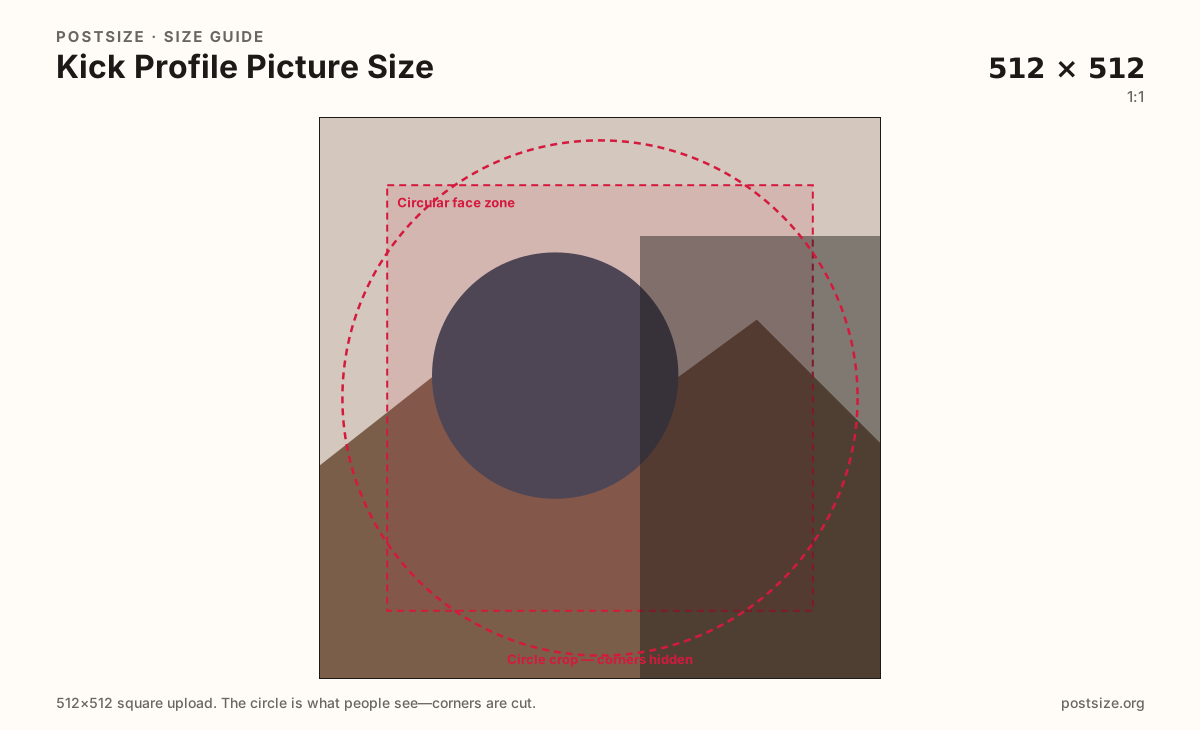
Always square. Kick masks a circle—keep the face or logo inside the guide. 512×512 is the practical default; 128×128 is only the official floor.
Export this for Kick upload.
512×512 1:1
Strong practical square for the circular Kick avatar on modern screens.
Use in tool| Asset | Pixels | Ratio | Notes | Action |
|---|---|---|---|---|
| Recommended upload Recommended | 512×512 | 1:1 | Strong practical square for the circular Kick avatar on modern screens. | Use in tool |
Reference sizes and crops—not always separate upload files.
128×128 1:1
Kick help lists 128×128 as a minimum—not a reason to ship a soft file. Prefer 512×512.
Use in tool| Asset | Pixels | Ratio | Notes | Action |
|---|---|---|---|---|
| Official minimum (reference) | 128×128 | 1:1 | Kick help lists 128×128 as a minimum—not a reason to ship a soft file. Prefer 512×512. | Use in tool |
You upload a square, but Kick almost never shows the full square. The channel page, chat, and discovery surfaces draw a circle. Anything in the four corners disappears the moment the mask applies.
512×512 is a practical recommended size: clear enough after compression, light enough for mobile viewers. Kick’s help documents list a minimum around 128×128—that is a floor, not a target. Soft 128×128 files look muddy next to HD stream previews.
Profile picture, channel banner, and offline banner are three different uploads. Manage branding on kick.com in the browser settings flow—not as a casual swap inside the mobile watching app. Export the avatar here, then upload where Kick expects channel identity assets.
Chat size is tiny. A busy logo, thin wordmark, or full-body shot fails when the circle shrinks beside live messages. Fill most of the circle with a face or bold mark, and leave rim detail out.
Same circle mask—corners disappear; design for the tiny comment-size icon.
Tick these off against your crop preview—nothing is saved.
Similar-looking slots often use different ratios—do not reuse one export for all of them.
512 × 512
This page. Circle on the channel and in chat.
1280 × 700
Wide strip on the channel—separate export.
1920 × 1080
Full-screen offline art—not an avatar substitute.
Very small circle
Same file, tiny display—bold faces beat fine detail.
| Surface | Typical size | Note |
|---|---|---|
| Profile picture | 512 × 512 | This page. Circle on the channel and in chat. |
| Channel banner | 1280 × 700 | Wide strip on the channel—separate export. |
| Offline banner | 1920 × 1080 | Full-screen offline art—not an avatar substitute. |
| Chat / mentions | Very small circle | Same file, tiny display—bold faces beat fine detail. |
Kick’s channel branding—including the profile picture—is managed through the website settings experience. The mobile app is built for watching and chatting, not as the primary place to replace channel art.
After you export here, finish the upload on desktop (or a browser session) so you can see Kick’s preview clearly before going live.
Viewers see a circle on the channel and an even smaller disc in chat. Place the face or logo in the center and leave padding so the mask does not clip ears, hair, or wordmark edges.
If someone cannot recognize you at chat size, tighten the crop—do not add more detail to the corners.
Prefer JPG for headshots. PNG suits flat logos. Keep sRGB. Treat 128×128 as Kick’s documented minimum only—export 512×512 whenever the source allows it.
Upload a face or logo photo, choose Recommended upload (512×512), center the subject in the circle guide, then download. Processing stays on your device.
From this download to a live upload in a few minutes.
Download the square JPG (or PNG for a flat logo) from the tool.
On a desktop browser, open kick.com and go to your channel / creator settings (wording may vary).
Upload the profile picture where Kick lists avatar or profile image.
Confirm the circle framing in Kick’s preview, then save.
Check the live channel and a busy chat window—avatars are very small there.
Upload a square. 512×512 is the recommended practical size on this page. Kick help lists a minimum of 128×128—prefer the clearer 512×512 export.
Yes. Keep the face or logo centered inside a circular safe zone so corners are not cut oddly.
Use kick.com channel / creator settings in a browser. The mobile app is not the main place to manage profile branding.
It meets the documented minimum, but chat and channel headers look better from a clear 512×512 file. Avoid upscaling a soft 128×128 source.
Kick will force square/circle framing. Control the crop here first so the wrong edge does not win.
Coordinate colors if you like, but export the avatar as its own square. The banner is 1280×700; the offline screen is 1920×1080.
JPG for photographs, PNG for flat logos. Prefer sRGB either way.