
Google post (recommended)
Recommended720×720 1:1
Practical square for Google Business Profile posts—updates, offers, and event cards that show in Search and Maps.
Use in toolGoogle Business · Image size
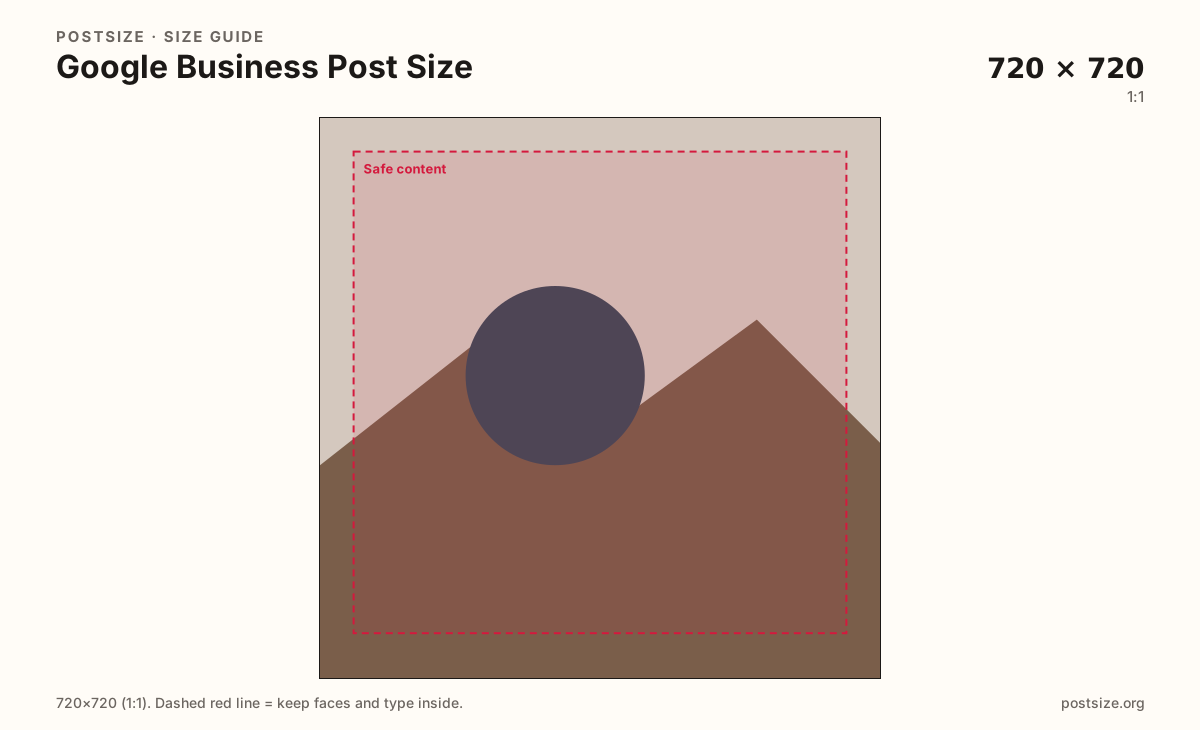
Google Business posts (updates, offers, events) read best as a clear 720×720 square. Keep the product or storefront inside a safe margin, then download before you publish in Business Profile.
Browser crop · stays on your device
720 × 720
Add a photo to crop
Upload an offer photo or storefront shot—or try the sample—then keep the subject inside the margin before you download.
Posts are short local updates, not feed carousels. A centered square beats a tall Instagram export squeezed into the composer.
Export this for Google Business upload.
720×720 1:1
Practical square for Google Business Profile posts—updates, offers, and event cards that show in Search and Maps.
Use in tool| Asset | Pixels | Ratio | Notes | Action |
|---|---|---|---|---|
| Google post (recommended) Recommended | 720×720 | 1:1 | Practical square for Google Business Profile posts—updates, offers, and event cards that show in Search and Maps. | Use in tool |
Reference sizes and crops—not always separate upload files.
1080×1080 1:1
Same 1:1 ratio when the original is sharp. Still compose for small mobile cards.
Use in tool| Asset | Pixels | Ratio | Notes | Action |
|---|---|---|---|---|
| Larger clear square | 1080×1080 | 1:1 | Same 1:1 ratio when the original is sharp. Still compose for small mobile cards. | Use in tool |
Google Business posts show offers, hours changes, and event teases next to your listing. Customers often see them as small squares in Search or Maps. Export 720×720 so the subject stays clear after Google re-encodes the upload.
Skip Facebook covers and tall Instagram feed files here. Reuse the photo if you want; re-crop to a square so prices and products are not glued to the edge.
Gallery photos and logo badges share the same square idea but different jobs. Use the photo guide for the Photos tab; use the profile picture guide for the mark next to your business name. This page is for the Posts composer.
Keep long copy in the post text field. On-image type should be a few large words—phone-sized cards punish microscopic menus and full flyer screenshots.
Same feed frame—keep the subject inside the margin phones actually show.
Tick these off against your crop preview—nothing is saved.
Similar-looking slots often use different ratios—do not reuse one export for all of them.
720 × 720
This page. Updates, offers, and event stills.
720 × 720
Same pixels—Photos tab framing on the photo guide.
1024 × 576 common
Landscape header—different guide.
720 × 720
Identity badge—profile picture guide.
| Surface | Typical size | Note |
|---|---|---|
| Google Business post | 720 × 720 | This page. Updates, offers, and event stills. |
| Square gallery photo | 720 × 720 | Same pixels—Photos tab framing on the photo guide. |
| Cover (wide) | 1024 × 576 common | Landscape header—different guide. |
| Logo / profile mark | 720 × 720 | Identity badge—profile picture guide. |
An offer post should show what people get—the product, the plate, the storefront—not a wall of fine print. Put the discount amount in the post fields when Google provides them; keep the image simple.
Event and “what’s new” updates work the same way: one clear subject, quiet margins, and readable type if you must letter the still.
Design for the phone-sized card first. If the subject only works full-bleed on a desktop mockup, it will fail on Maps. Leave a quiet rim so Google’s chrome does not clip faces or logos.
JPG in sRGB is the everyday choice for photos. Keep files clear but not enormous. Google may re-encode uploads; noisy screenshots rarely survive well.
Posts announce something now. Gallery photos fill the Photos tab with interiors and products. Covers are wide landscape headers. Same business, three artboards—export each ratio on purpose.
Upload a storefront or offer photo, choose Google post (720×720), drag until the subject sits inside the margin, then download. Processing stays on your device.
From this download to a live upload in a few minutes.
Download the 720×720 JPG from the tool.
Open Google Business Profile → Posts → create update, offer, or event.
Attach the image, fill the text fields Google asks for, then publish.
Check the post on your phone in Search or Maps.
If the subject feels tight, re-crop with more margin and replace the image.
A clear 720×720 square works well for posts and offers. Keep the subject centered for small Search and Maps cards.
Yes—Google My Business is the older name for Google Business Profile. Post images still work best as centered squares around 720×720.
No. Instagram feed posts often use 1080×1350 (4:5). Google posts prefer a square. Re-crop instead of forcing a tall social export.
Use the same square habit. Put discount details and dates in Google’s post fields; keep the image simple and readable.
Same practical pixels (720×720), different job. This page is for Posts; the photo guide focuses on gallery-style uploads. Open the cover guide for the wide header.
JPG for photographs of your business. PNG can help for flat logo-style graphics with hard edges.
Yes. Crop on this page, download the file, then upload it in Google Business Profile yourself. Nothing is sent to a PostSize server.