
Offline banner
Recommended1920×1080 16:9
Full HD offline / ended-stream screen. Not the 1200×480 channel profile banner.
Use in toolTwitch · Image size
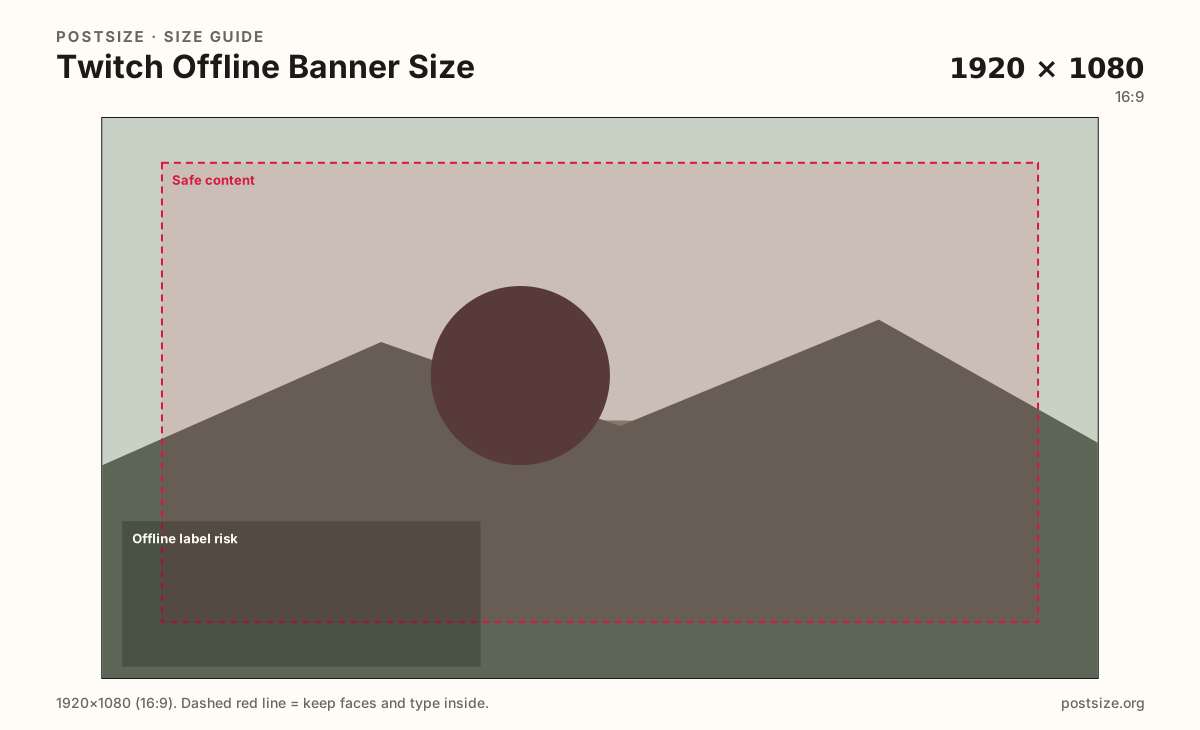
Twitch offline banners are full 16:9 frames at 1920×1080. Keep schedule CTAs clear of the lower-left Offline label, then download in your browser.
Browser crop · stays on your device
1920 × 1080
Add a photo to crop
Upload a wide graphic—or try the sample—then keep schedule text out of the lower-left Offline label risk before you download.
Publish at 1920×1080 (16:9). Leave the lower-left quieter—Twitch often overlays an Offline (or similar) label there. This is not the 1200×480 channel banner.
Export this for Twitch upload.
1920×1080 16:9
Full HD offline / ended-stream screen. Not the 1200×480 channel profile banner.
Use in tool| Asset | Pixels | Ratio | Notes | Action |
|---|---|---|---|---|
| Offline banner Recommended | 1920×1080 | 16:9 | Full HD offline / ended-stream screen. Not the 1200×480 channel profile banner. | Use in tool |
When a Twitch channel is offline, viewers often see a dedicated offline image instead of the live player. Creators commonly ship that asset at 1920×1080 (16:9)—a full-frame stage for branding, next-stream times, and socials. It is not a thin profile strip.
The channel banner (usually 1200×480, sometimes a wider 1920×480 upload) lives on the profile page above panels and About. Stretching that short strip into 16:9 letterboxes the art and wastes the offline canvas. Export a true 1920×1080 master with room for a clear schedule call-to-action.
Twitch UI often places an Offline (or similar status) chip toward the lower-left of the player area. A logo or “Next live Friday” line parked only in that pocket can vanish under chrome. Keep the primary CTA in the open mid band and treat the lower-left as atmosphere.
Kick offline screens also target 1920×1080, but Kick’s channel banner ratio differs. Reusing a Kick offline file here is a solid start—still preview on Twitch so the Offline label and panel layout do not hide your message. Twitch under-About panels are narrow cards; do not design the offline frame as a stack of tiny panel tiles.
Same landscape card—edges and tiny type fail after compression or multi-image crop.
Tick these off against your crop preview—nothing is saved.
Similar-looking slots often use different ratios—do not reuse one export for all of them.
1920 × 1080
This page. Offline / ended-stream screen.
1200 × 480
Profile strip on the channel—separate upload.
800 × 800 (try)
Circular avatar—separate square export.
1920 × 1080
Same pixels, different platform chrome—re-check on Twitch.
| Surface | Typical size | Note |
|---|---|---|
| Offline banner | 1920 × 1080 | This page. Offline / ended-stream screen. |
| Channel banner | 1200 × 480 | Profile strip on the channel—separate upload. |
| Profile picture | 800 × 800 (try) | Circular avatar—separate square export. |
| Kick offline (related) | 1920 × 1080 | Same pixels, different platform chrome—re-check on Twitch. |
The channel banner is the wide strip on the profile page (commonly 1200×480). The offline banner is a full 16:9 screen shown when you are not live. They share a brand mood—not a crop.
If you only have one graphic today, design the offline frame first for schedule clarity, then crop a dedicated 1200×480 banner from a wider master—not the other way around.
Twitch often draws status chrome toward the lower-left of the offline player. Exact padding shifts by client and layout, so design with margin—not pixel-perfect assumptions.
Put the brand wordmark and next-stream line in the open center. Soft texture or empty sky in the lower-left reads cleaner than a second headline fighting the chip.
Viewers who miss the live window need one obvious next step. A large day/time line, timezone if your audience is global, and one Discord or social pointer beat a wall of tiny icons.
Put long rules and panel-style lists under About. The offline frame should answer: when are you back, and where else can they follow?
JPG suits photo backgrounds; PNG suits flat graphics and hard type. Prefer sRGB. Start from a true Full HD master—do not upscale a soft 720p screenshot and hope.
Upload a wide graphic, choose Offline banner (1920×1080), keep faces and schedule type inside the margin and out of the lower-left risk band, then download. Processing stays in your browser.
From this download to a live upload in a few minutes.
Download the 1920×1080 JPG (or PNG for hard-edged graphics) from the tool.
On Twitch in a browser, open Creator Dashboard → Settings → Stream (or Channel) and find Offline Banner / Offline Image (wording may vary).
Upload the file and confirm the full-frame preview.
Save, then open the channel while offline to verify the CTA clears the Offline label.
If type looks small on a phone, enlarge the schedule line and re-export.
1920×1080 pixels (16:9) is the common Full HD offline / ended-stream screen size creators ship. Confirm the upload field name in Creator Dashboard—labels can vary.
The channel banner is typically 1200×480 on the profile page. The offline banner is 1920×1080 for when the stream is offline. They are separate uploads—do not stretch one into the other.
Keep the next-stream line large in the mid band. Avoid the lower-left where Twitch often overlays an Offline or status label.
Both often use 1920×1080, but channel banners and UI chrome differ. Reuse the file as a start, then preview on Twitch so the Offline label does not hide your CTA.
Often as a starting file—both are 16:9. Still re-crop for offline messaging and confirm the CTA clears Twitch chrome when the channel is not live.
JPG for photo backgrounds, PNG for hard-edged graphics. Prefer sRGB either way.
In Creator Dashboard → Settings → Stream or Channel, look for Offline Banner / Offline Image (wording may vary). It is not the same field as the 1200×480 channel banner.