
Clearer upload
Recommended1024×1024 1:1
Clearer on phones and large displays; Telegram still masks a circle from the center.
Use in toolTelegram · Image size
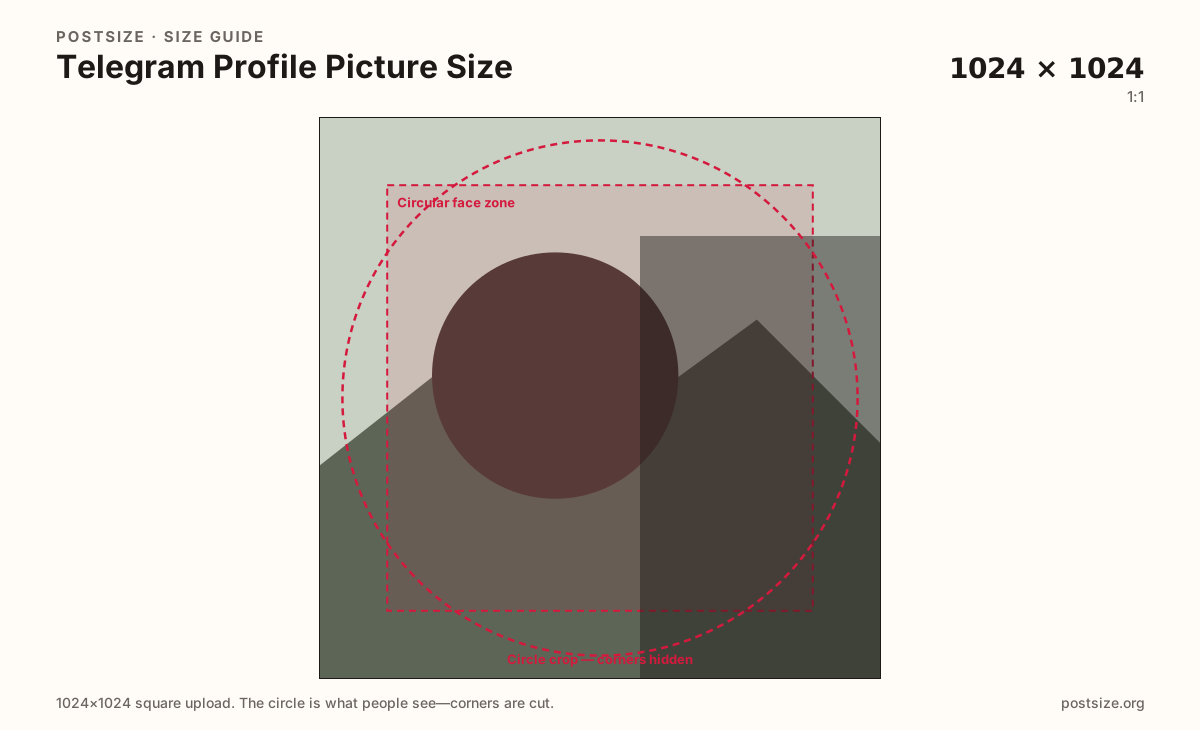
Telegram shows your photo as a circle in chats, groups, and channels. Export a clear 1024×1024 square, keep the face or logo inside the circle, then download in your browser.
Browser crop · stays on your device
1024 × 1024
Add a photo to crop
Upload a headshot or logo—or try the sample—then drag so the subject stays inside the circle before you download.
Always start from a square. Chat lists show a tiny circle—eyes, logos, and wordmarks must live inside the guide, not near the corners.
Export this for Telegram upload.
1024×1024 1:1
Clearer on phones and large displays; Telegram still masks a circle from the center.
Use in tool512×512 1:1
Fine when the source is already soft—still keep the subject inside the circle.
Use in tool| Asset | Pixels | Ratio | Notes | Action |
|---|---|---|---|---|
| Clearer upload Recommended | 1024×1024 | 1:1 | Clearer on phones and large displays; Telegram still masks a circle from the center. | Use in tool |
| Common display square | 512×512 | 1:1 | Fine when the source is already soft—still keep the subject inside the circle. | Use in tool |
You upload a square, but Telegram almost never shows the full square. Private chats, group lists, channel headers, and forwarded-message attribution all draw a circle—often very small. Anything in the four corners disappears the moment the mask applies.
1024×1024 is a clearer practical upload for modern phones; 512×512 still works when the source is already soft. A muddy 120×120 file will not sharpen because you renamed it “HD.” Start larger when the photo allows it, then keep the face or mark bold inside the circle.
Channel and group photos follow the same circular rules as a personal profile picture. Center the face or logo so the mark still reads when someone scrolls a long chat list. Busy backgrounds and thin rim text fail first at that size.
Unlike X or YouTube, Telegram does not give every account a traditional wide profile banner you crop here. Boosted channels may show gradient or emoji-style covers in product UI—that is not a crop job on this page. Export the circular photo; do not invent a fake header strip.
Same circle mask—corners disappear; design for the tiny comment-size icon.
Tick these off against your crop preview—nothing is saved.
Similar-looking slots often use different ratios—do not reuse one export for all of them.
1024 × 1024 (try)
This page. Circle in chats and your profile.
Same square → circle
Same circular rules; keep the mark bold and centered.
Often 1280 × 720
Feed still for channel updates—separate export.
Not a standard crop here
Telegram has no X/YouTube-style banner upload on this tool.
| Surface | Typical size | Note |
|---|---|---|
| Personal profile photo | 1024 × 1024 (try) | This page. Circle in chats and your profile. |
| Channel / group photo | Same square → circle | Same circular rules; keep the mark bold and centered. |
| Channel post image | Often 1280 × 720 | Feed still for channel updates—separate export. |
| Wide profile banner | Not a standard crop here | Telegram has no X/YouTube-style banner upload on this tool. |
Viewers see a circle in almost every Telegram surface that shows your photo. Place the face or logo in the center and leave a little padding so the mask does not clip ears, hair, or wordmark edges.
Chat lists shrink the same file to a tiny disc. If someone cannot recognize you there, tighten the crop—do not add more detail to the corners.
Creators coming from X, YouTube, or Facebook often search for a “Telegram banner size.” Personal and standard channel profiles do not use a croppable wide header like those networks. This page is for the circular photo only.
Some promoted or boosted channel experiences use gradient or emoji-style covers inside Telegram’s product UI. Those are not a file you prepare with this crop tool. If you need a wide graphic, publish it as a channel post image instead.
Prefer JPG for headshots. PNG suits flat logos or hard-edged brand marks. Keep sRGB and avoid huge files that add nothing once the circle is tiny in chat.
Upload a face or logo photo, choose Clearer upload (1024×1024), center the subject in the circle guide, then download. Processing stays on your device.
From this download to a live upload in a few minutes.
Download the square JPG (or PNG for a flat logo) from the tool.
In Telegram, open Settings → profile photo (or Channel / Group info → Edit photo).
Upload the file and confirm the circle framing in Telegram’s preview.
If Telegram offers a zoom/position step, keep eyes or the logo centered.
Check once in a chat list, where the avatar is very small.
Use a square. 1024×1024 is a clearer upload target; 512×512 is a common practical square. Telegram shows the image as a circle in chats and profiles.
Yes. Keep the face or logo centered inside a circular safe zone so corners are not cut into odd shapes.
No traditional wide profile banner like X or YouTube. Boosted channels may use gradient or emoji covers in Telegram’s UI—not a crop you make on this page. Export the circular photo here; use a channel post for widescreen graphics.
Same square-into-circle habit. Export a dedicated file if the channel mark differs from your personal face photo.
Telegram will force square/circle framing. Control the crop here first so the wrong edge detail does not win.
JPG for photographs, PNG for flat logos. Prefer sRGB either way.
Same circle, more detail on high-density screens. If the source is already soft, 512×512 is fine—just avoid upscaling noise.