
Clearer upload
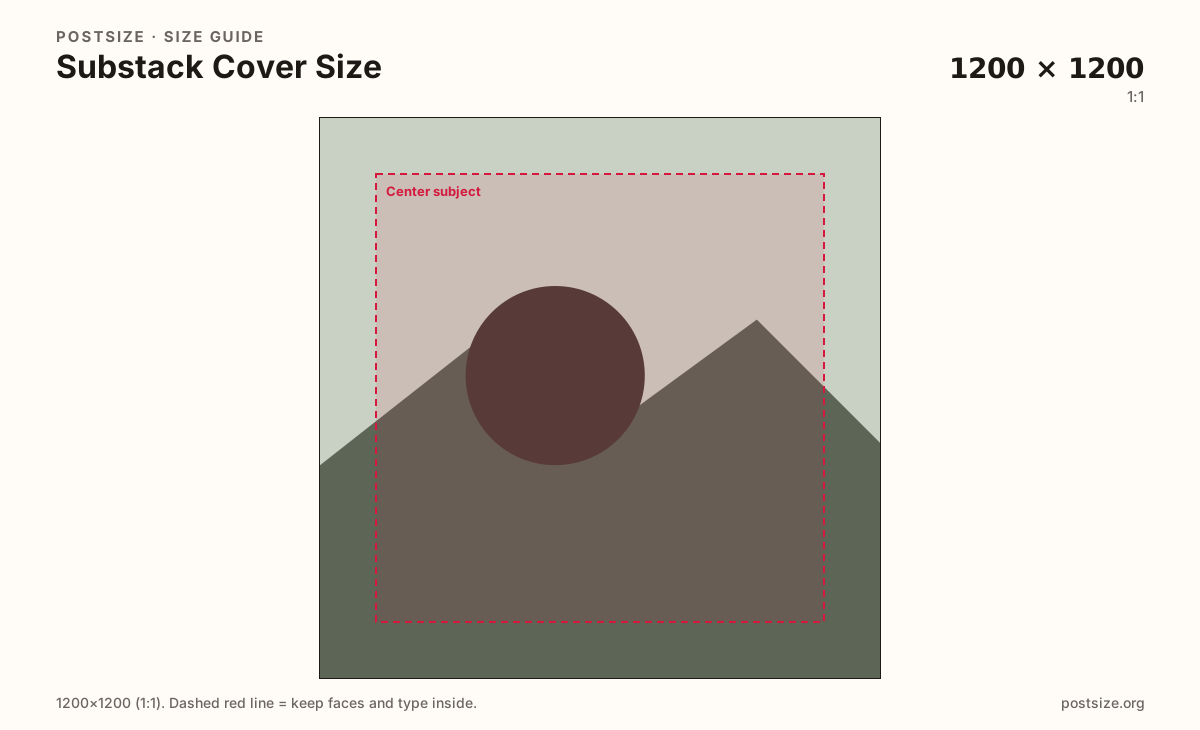
Recommended1200×1200 1:1
Practical square master above the 600×600 floor for sharper welcome-page art.
Use in toolSubstack · Image size
Substack cover images need a square at least 600×600 for the welcome page. Export a clear 1200×1200 when you can, then download in your browser.
Browser crop · stays on your device
1200 × 1200
Add a photo to crop
Upload a photo or brand still—or try the sample—then keep the subject in the center before you download.
This is the welcome-page cover square—not the wide social / post preview card and not the tiny logo stamp.
Export this for Substack upload.
1200×1200 1:1
Practical square master above the 600×600 floor for sharper welcome-page art.
Use in tool| Asset | Pixels | Ratio | Notes | Action |
|---|---|---|---|---|
| Clearer upload Recommended | 1200×1200 | 1:1 | Practical square master above the 600×600 floor for sharper welcome-page art. | Use in tool |
Reference sizes and crops—not always separate upload files.
600×600 1:1
Substack help lists at least 600×600 for the publication cover image.
Use in tool| Asset | Pixels | Ratio | Notes | Action |
|---|---|---|---|---|
| Official minimum | 600×600 | 1:1 | Substack help lists at least 600×600 for the publication cover image. | Use in tool |
The cover image sits on the publication welcome page above your name and subscribe button. Substack help asks for at least 600×600. Prefer a clearer 1200×1200 so the art stays intentional after compression.
If you leave the cover empty, Substack often falls back to the logo. That can look unfinished next to competitors with a dedicated square. Crop a real cover when branding matters.
Social / post preview images are a different ratio (~14:10, often 1456×1048). Stretching the welcome square into that share card crops faces badly. Export two files.
The logo remains the small identity mark for inboxes. Do not replace the logo with this larger cover crop—or the reverse.
Same feed frame—keep the subject inside the margin phones actually show.
Tick these off against your crop preview—nothing is saved.
Similar-looking slots often use different ratios—do not reuse one export for all of them.
1200 × 1200 (try)
This page. Welcome-page square.
512 × 512
Inbox / header mark—smaller job.
1456 × 1048
Wide share card—different ratio.
| Surface | Typical size | Note |
|---|---|---|
| Cover image | 1200 × 1200 (try) | This page. Welcome-page square. |
| Logo | 512 × 512 | Inbox / header mark—smaller job. |
| Social / post preview | 1456 × 1048 | Wide share card—different ratio. |
Readers decide in a glance. A calm photo or bold brand field beats a busy collage. Keep the subscribe CTA readable—do not bury the only hook under dense type on the image.
Share cards use a wider ~14:10 frame. Reusing this square for Open Graph-style previews usually clips the sides or adds padding. Crop the social preview page separately.
JPG for photos, PNG for flat graphics. Prefer sRGB. A clean 1200×1200 usually looks sharper than a noisy minimum upload.
Upload a photo, choose Clearer upload (1200×1200), drag until the subject sits in the center, then download. Cropping stays in the browser.
From this download to a live upload in a few minutes.
Download the square JPG or PNG from the tool.
In Substack website settings / Basics, update the cover image.
Open the public welcome page on phone and desktop.
If faces feel cropped, re-crop here and replace the file.
At least 600×600 square. Prefer 1200×1200 for a clearer welcome-page upload.
No. Covers are square. Social / post previews use a wider ~14:10 frame (often 1456×1048).
Substack may fall back to your logo. A dedicated cover usually looks more intentional on the welcome page.
Yes. The in-browser crop stays on your device until you download and upload to Substack yourself.