
Practical square
Recommended512×512 1:1
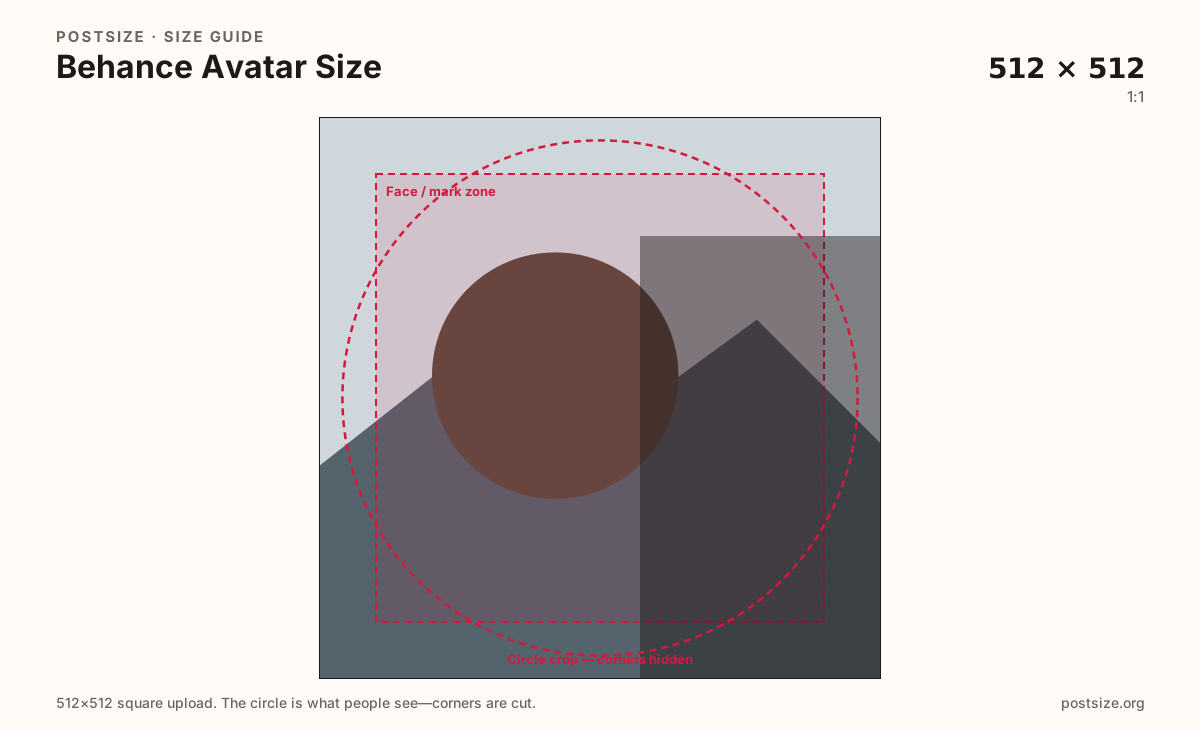
Practical square for Behance profile marks. Keep the face or logo inside the guide—preview on Behance.
Use in toolBehance · Image size
Behance shows your photo as a profile mark beside projects. Export a clear 512×512 square, keep the face or logo inside the guide, then download.
Browser crop · stays on your device
512 × 512
Add a photo to crop
Upload a headshot or logo—or try the sample—then keep the subject inside the guide before you download.
Profile headers and comments shrink this file. Project covers are separate 16:9 (or ~4:3) jobs.
Export this for Behance upload.
512×512 1:1
Practical square for Behance profile marks. Keep the face or logo inside the guide—preview on Behance.
Use in tool| Asset | Pixels | Ratio | Notes | Action |
|---|---|---|---|---|
| Practical square Recommended | 512×512 | 1:1 | Practical square for Behance profile marks. Keep the face or logo inside the guide—preview on Behance. | Use in tool |
On Behance, your avatar accompanies every project in lists and comments. A practical 512×512 square with a clear face or studio mark beats a soft crop from a 16:9 cover.
Hire managers and collaborators recognize you as a tiny stamp. Soft group photos and thin wordmarks fail first. Fill most of the guide with one subject.
LinkedIn and Instagram avatars can be starters. Behance’s portfolio context still deserves a dedicated preview—especially if you use a logo instead of a face.
Project covers (1920×1080 or optional 1400×1050) sell the case study. They are not substitutes for a profile mark.
Same circle mask—corners disappear; design for the tiny comment-size icon.
Tick these off against your crop preview—nothing is saved.
Similar-looking slots often use different ratios—do not reuse one export for all of them.
512 × 512
This page. Profile mark beside projects.
1920 × 1080
Folio billboard—separate guide.
Square starters
Common starters—re-crop for Behance.
Simple only
Keep marks bold—thin rim text fails.
| Surface | Typical size | Note |
|---|---|---|
| Avatar | 512 × 512 | This page. Profile mark beside projects. |
| Project cover | 1920 × 1080 | Folio billboard—separate guide. |
| LinkedIn / Instagram avatar | Square starters | Common starters—re-crop for Behance. |
| Studio wordmark | Simple only | Keep marks bold—thin rim text fails. |
Freelancers often use a face; studios often use a monogram. Either way, the mark should survive at tiny sizes next to project titles.
Covers sell work; avatars sell who made it. Cross-network avatars help—still preview Behance live.
JPG for photos; PNG for flat logos. Prefer sRGB. Keep weight light for profile uploads.
Upload a headshot or logo, keep Practical square selected, drag until the subject sits in the guide, then download.
From this download to a live upload in a few minutes.
Download the 512×512 JPG or PNG from the tool.
In Behance, open profile settings and upload the photo.
Check the profile header and a project comment thread.
If the mark clips, enlarge and re-export.
A practical export is 512×512 (1:1). Preview on the Behance profile after upload.
No. Project covers are wide folio stamps (practical 1920×1080). Avatars are profile marks.
Often as a starter. Re-crop to 512×512 and confirm clarity on Behance.
No. Practical community sizing as of 2026-08-21. Always preview before you publish.
Yes. Files stay on your device until you download and upload to Behance yourself.