
Community image (landscape)
Recommended1280×720 16:9
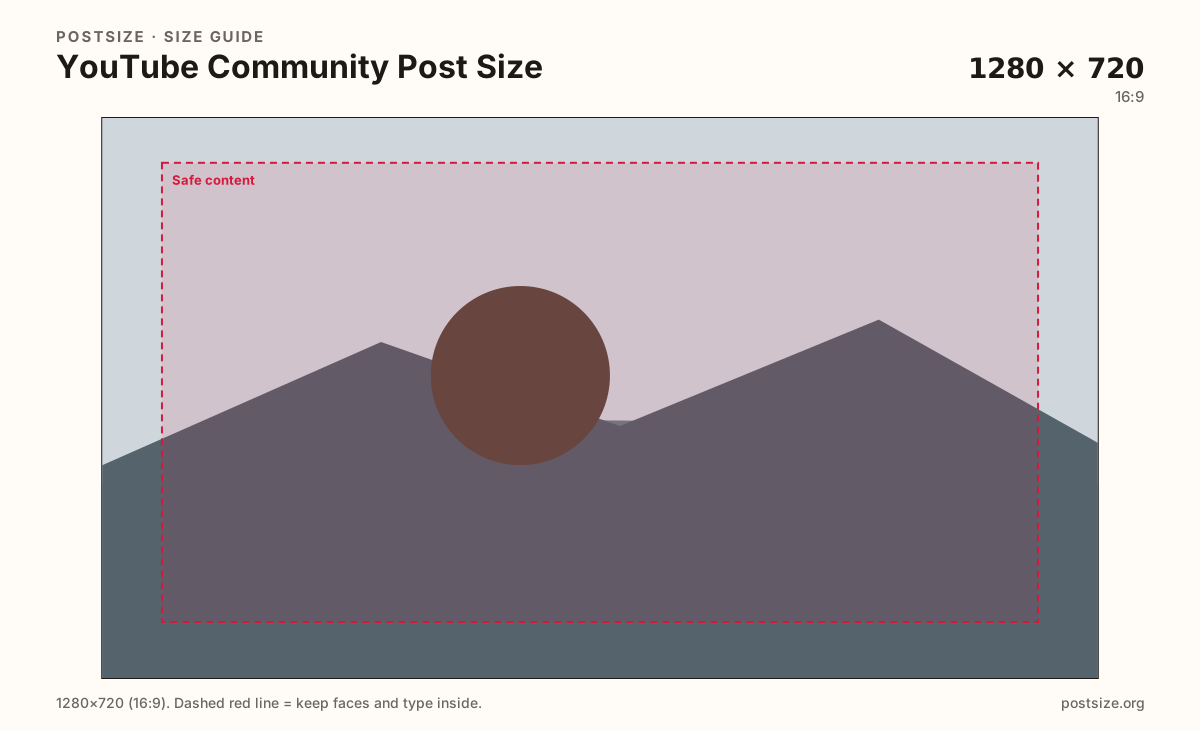
Practical single-image frame for many Community posts. Same ratio family as video thumbs—but this is a feed update, not a video click card.
Use in toolYouTube · Image size
Community posts are channel updates, not video cards. Export a clear landscape (1280×720) or square (1080×1080), keep the subject inside a safe margin, then download in your browser.
Browser crop · stays on your device
1280 × 720
Add a photo to crop
Upload a photo or graphic—or try the sample—then keep the subject inside the margin before you download.
Pick landscape for wide scenes and announcements; pick square when the subject is already centered. Do not paste channel-banner art or a soft phone screenshot into the Community composer.
Export this for YouTube upload.
1280×720 16:9
Practical single-image frame for many Community posts. Same ratio family as video thumbs—but this is a feed update, not a video click card.
Use in tool1080×1080 1:1
Clean when the photo is already square—polls, product shots, or a tight face crop.
Use in tool| Asset | Pixels | Ratio | Notes | Action |
|---|---|---|---|---|
| Community image (landscape) Recommended | 1280×720 | 16:9 | Practical single-image frame for many Community posts. Same ratio family as video thumbs—but this is a feed update, not a video click card. | Use in tool |
| Community image (square) | 1080×1080 | 1:1 | Clean when the photo is already square—polls, product shots, or a tight face crop. | Use in tool |
The Community tab is where channels post updates, polls, and stills between uploads. Viewers see those images in the channel feed and sometimes in notifications—not as the clickable card on Home or Suggested. Treating a Community still like a “second thumbnail” is fine for ratio habits, but the job is different: clarity in a conversation thread, not a browse-shelf click.
A landscape export at 1280×720 keeps announcements clear after YouTube compresses the upload. Square 1080×1080 works when the scene is already centered—product packs, face-forward thank-yous, or a simple graphic. Odd panoramic screenshots and channel-banner strips usually look soft or oddly letterboxed in the composer.
It is easy to confuse these stills with video thumbnails. Thumbnails sit under titles on Home and Suggested; Community images sit under a channel update. Reuse the photography if you want—export a dedicated Community crop so type and faces are not tuned only for a tiny Suggested card.
Need the same photo for Instagram or Facebook too? Convert ratios on the image size converter, then come back here for the 16:9 Community frame. Keep on-image text large and short—Community readers skim on phones.
Same landscape card—edges and tiny type fail after compression or multi-image crop.
Tick these off against your crop preview—nothing is saved.
Similar-looking slots often use different ratios—do not reuse one export for all of them.
1280 × 720 or 1080 × 1080
This page. Channel update stills and many single-image posts.
1280 × 720
Same landscape pixels often—but a video click card, not a Community update.
2560 × 1440
Wide branding with a center safe zone—do not reuse as a Community still.
1080 × 1920
Full-screen vertical. Re-crop before forcing into a Community landscape slot.
| Surface | Typical size | Note |
|---|---|---|
| Community post image | 1280 × 720 or 1080 × 1080 | This page. Channel update stills and many single-image posts. |
| Video thumbnail | 1280 × 720 | Same landscape pixels often—but a video click card, not a Community update. |
| Channel banner | 2560 × 1440 | Wide branding with a center safe zone—do not reuse as a Community still. |
| Shorts / vertical | 1080 × 1920 | Full-screen vertical. Re-crop before forcing into a Community landscape slot. |
Both often use a 16:9 still, which is why search results blur them together. A thumbnail fights for a tap among dozens of Suggested cards. A Community image supports a channel update people already chose to open.
You can share photography across both jobs. Export separately when the Community graphic needs more wording, a poll-friendly square, or a calmer composition that is not optimized only for click emotion.
Lead with one clear subject: a face, a product, a simple graphic, or a single scene from the video you are teasing. Dense collages look muddy after compression and hard to read in a narrow phone column.
If you must put words on the image, three to six large words beat a paragraph. Dates, links, and long explanations belong in the Community text field where they stay selectable and searchable.
JPG in sRGB is the everyday choice for photos. PNG helps flat graphics with hard edges. Keep files clear but not enormous—Community uploads are often opened on mobile data.
Upload a photo or graphic, choose landscape 1280×720 or square 1080×1080, drag until the subject sits inside the margin, then download. Processing stays on your device.
From this download to a live upload in a few minutes.
Download the JPG (or PNG) from the tool.
In YouTube Studio or the YouTube app, open your channel → Community → create a post.
Attach the image, write the update text, then preview on your phone.
If type looks soft, re-export with fewer words and larger letters.
Do not upload this file as a video thumbnail unless you intentionally want the same still there too.
A clear 1280×720 (16:9) landscape works well for many single-image Community posts. Square 1080×1080 works when the subject is already centered. Keep content inside a safe margin for compression.
They often share a 16:9 habit, but they are different jobs. Thumbnails are video click cards; Community images are channel updates. Export with the surface you are filling in mind.
They often share a 16:9 habit, but they are different jobs. If you are posting an update on the Community tab, use this guide. If you are setting a video’s custom thumbnail, use the thumbnail guide.
Reuse the photo if you want, but re-crop. Channel banners are 2560×1440 with a center safe band and look wrong when forced into a Community composer.
YouTube may accept varied shapes, but tall 9:16 stills often feel cramped next to text. Prefer landscape or square unless the vertical crop is intentional and still readable.
JPG for photographs; PNG for hard-edged graphics or type-heavy stills. Prefer sRGB either way.
YouTube re-encodes uploads. Soft screenshots and tiny social exports get worse. Start from a clear camera or design file and export true 1280×720 or 1080×1080 pixels.
Not always. YouTube enables the Community tab based on channel status. If you do not see it yet, this crop still helps you prepare assets for when the tab is available.
Yes. Crop landscape or square in the browser, download the file, then attach it from YouTube Studio or the app yourself.